> For the complete documentation index, see [llms.txt](https://eaclouddoc.eauditor.eu/llms.txt). Markdown versions of documentation pages are available by appending `.md` to page URLs; this page is available as [Markdown](https://eaclouddoc.eauditor.eu/eacloud-docs-en/features/tools/configuration/employee-panel.md).
# Employee Panel
We are working on this feature. We will notify you about its release in the changelog as soon as it becomes available.
{% hint style="info" %}
**\[Employee Panel]** We are working on this functionality. We will announce its deployment in the changelog as soon as it becomes available.
{% endhint %}
## **Employee Panel – configuration**
The Employee Panel is a personalized panel displayed on desktops with eAgent installed, after this feature has been enabled by an administrator on selected devices.
{% hint style="info" %}
Read more about [installation of the Employee Panel](/eacloud-docs-en/features/it-infrastructure/computers.md) in the section dedicated to computers.
{% endhint %}
After activation, an icon appears on the desktop which, when clicked, provides the end user access to data and functions related exclusively to their account. The scope of visible information results from the assigned panel scheme and may vary depending on the user role, group, or organizational structure.
Tab **Employee Panel** allows configuration of panel schemes. An administrator can specify which functions and information will be available to individual users.
Panel schemes are assigned to users in the same manner as application kiosk schemes.
By default, one scheme is available in the system - **default.**
### **Main view elements**
#### **Scheme list view**
The view displays all created schemes as tiles containing the following information:
* **Group name** – Unique name of the scheme.
* **Creation date** – Date and time the scheme was added.
* **Assigned employees** – List of users assigned to the scheme (with option to expand the full list).
* **Activation switch** – Turns the scheme on or off.
* **Action buttons**:
* **Edit** – Opens the scheme editing window.
* **Duplicate** – Creates a new scheme based on an existing one.
* **Delete** – Permanently removes the scheme.
* **Panel items preview** – List of options available in the given scheme with checkboxes indicating active elements.
#### **Scheme filtering**
The view allows filtering by:
* **Users** – Quick search for schemes assigned to specific employees.
* **Active panel items** – Filtering by available functions in the scheme.
## **Adding a new scheme**
Clicking the **+Add panel** button opens the configuration form for a new scheme.
### **Creating a scheme**
{% stepper %}
{% step %}
### **Name and description – Enter the scheme name and optionally a short description.**
{% endstep %}
{% step %}
### **Assigning panel items**
Select the functions to be available in the Employee Panel. Available options:
* Dashboard
* Shortcuts (to web pages)
* My tickets (available only with helpdesk integration)
* My computer
* Productivity
* Knowledge base
* Training (available only with LMS integration)
* Latest news
* Hardware
* Software
* Permissions (folders)
* WorkTime Manager
* Group
* Support (available only with helpdesk integration)
* Tickets
* Knowledge base
* Messages
* Training (available only with LMS integration)
* Permissions (available only with ACL integration)
* Kiosk
Each option can be enabled or disabled by selecting the item. Black border = enabled.
{% endstep %}
{% step %}
### **Defining shortcuts (optional)**
* Shortcuts allow quick switching from the Employee Panel to defined URLs.
* An administrator can define URLs and allow them to open in a new browser tab.
* Examples of use:
* Links to internal resources, e.g., the organization’s intranet.
* Websites verified by the administrator.
* Shortcuts are visible in the Employee Panel as clickable tiles.
{% endstep %}
{% step %}
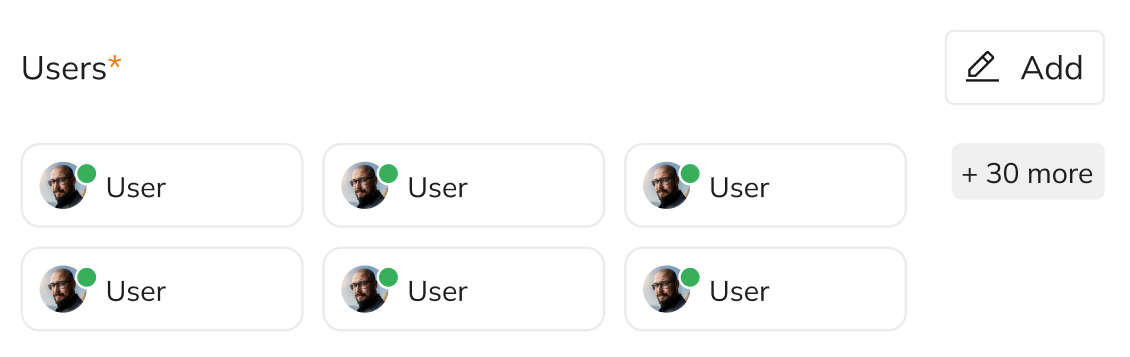
### **Assigning employees**
* Select the employees whose Employee Panel will be restricted according to the created scheme.
* The user list can be filtered or searched.
{% endstep %}
{% step %}
### **Completion of configuration**
Click **Save**to confirm changes, or **Cancel**to abort the process.
{% endstep %}
{% endstepper %}
## **Actions available for existing schemes**
Each scheme tile contains the following actions:
1. **Edit** – Opens a side menu where the scheme settings can be modified.
2. **Duplicate** – Creates a new scheme based on the existing one with the suffix “copy”.
3. **Delete** – Removes the scheme from the system along with assigned users.
## **Application of Work Time Manager**
Work Time Manager allows full personalization of the Employee Panel, which increases work efficiency and provides better alignment of tools to roles within the organization. By enabling shortcuts and restricting functions, administrators can effectively control user access to system and web resources.
{% hint style="info" %}
**\[Employee Panel]** We are working on this functionality. We will announce its deployment in the changelog as soon as it becomes available.
{% endhint %}
---
# Agent Instructions
This documentation is published with GitBook. GitBook is the documentation platform designed so that both humans and AI agents can read, navigate, and reason over technical content effectively. Learn more at gitbook.com.
## Querying This Documentation
If you need additional information that is not directly available in this page, you can query the documentation dynamically by asking a question.
Perform an HTTP GET request on the current page URL with the `ask` query parameter, and the optional `goal` query parameter:
```
GET https://eaclouddoc.eauditor.eu/eacloud-docs-en/features/tools/configuration/employee-panel.md?ask=&goal=
```
`ask` is the immediate question: it should be specific, self-contained, and written in natural language.
`goal` is optional and describes the broader end goal you are ultimately trying to accomplish on behalf of the user. GitBook uses it to tailor the answer towards what is most useful for that goal.
The response will contain a direct answer to the question and relevant excerpts and sources from the documentation.
Use this mechanism when the answer is not explicitly present in the current page, you need clarification or additional context, or you want to retrieve related documentation sections.


 {% endstep %}
{% step %}
### **Completion of configuration**
Click **Save**to confirm changes, or **Cancel**to abort the process.
{% endstep %}
{% endstepper %}
## **Actions available for existing schemes**
Each scheme tile contains the following actions:
1. **Edit** – Opens a side menu where the scheme settings can be modified.
2. **Duplicate** – Creates a new scheme based on the existing one with the suffix “copy”.
3. **Delete** – Removes the scheme from the system along with assigned users.
## **Application of Work Time Manager**
Work Time Manager allows full personalization of the Employee Panel, which increases work efficiency and provides better alignment of tools to roles within the organization. By enabling shortcuts and restricting functions, administrators can effectively control user access to system and web resources.
{% hint style="info" %}
**\[Employee Panel]** We are working on this functionality. We will announce its deployment in the changelog as soon as it becomes available.
{% endhint %}
---
# Agent Instructions
This documentation is published with GitBook. GitBook is the documentation platform designed so that both humans and AI agents can read, navigate, and reason over technical content effectively. Learn more at gitbook.com.
## Querying This Documentation
If you need additional information that is not directly available in this page, you can query the documentation dynamically by asking a question.
Perform an HTTP GET request on the current page URL with the `ask` query parameter, and the optional `goal` query parameter:
```
GET https://eaclouddoc.eauditor.eu/eacloud-docs-en/features/tools/configuration/employee-panel.md?ask=
{% endstep %}
{% step %}
### **Completion of configuration**
Click **Save**to confirm changes, or **Cancel**to abort the process.
{% endstep %}
{% endstepper %}
## **Actions available for existing schemes**
Each scheme tile contains the following actions:
1. **Edit** – Opens a side menu where the scheme settings can be modified.
2. **Duplicate** – Creates a new scheme based on the existing one with the suffix “copy”.
3. **Delete** – Removes the scheme from the system along with assigned users.
## **Application of Work Time Manager**
Work Time Manager allows full personalization of the Employee Panel, which increases work efficiency and provides better alignment of tools to roles within the organization. By enabling shortcuts and restricting functions, administrators can effectively control user access to system and web resources.
{% hint style="info" %}
**\[Employee Panel]** We are working on this functionality. We will announce its deployment in the changelog as soon as it becomes available.
{% endhint %}
---
# Agent Instructions
This documentation is published with GitBook. GitBook is the documentation platform designed so that both humans and AI agents can read, navigate, and reason over technical content effectively. Learn more at gitbook.com.
## Querying This Documentation
If you need additional information that is not directly available in this page, you can query the documentation dynamically by asking a question.
Perform an HTTP GET request on the current page URL with the `ask` query parameter, and the optional `goal` query parameter:
```
GET https://eaclouddoc.eauditor.eu/eacloud-docs-en/features/tools/configuration/employee-panel.md?ask=