> For the complete documentation index, see [llms.txt](https://eaclouddoc.eauditor.eu/llms.txt). Markdown versions of documentation pages are available by appending `.md` to page URLs; this page is available as [Markdown](https://eaclouddoc.eauditor.eu/eacloud-docs-en/features/tools/configuration/focus.md).
# Focus
## **Focus (Global filters)**
The **Focus** allows configuration of global filters that can be applied across the entire system. It enables defining predefined system filters as well as creating and managing user filters. Focus also offers the ability to automate actions based on filtering criteria. This feature is available in the **Tools → Settings**.
### **Main sections of the view**
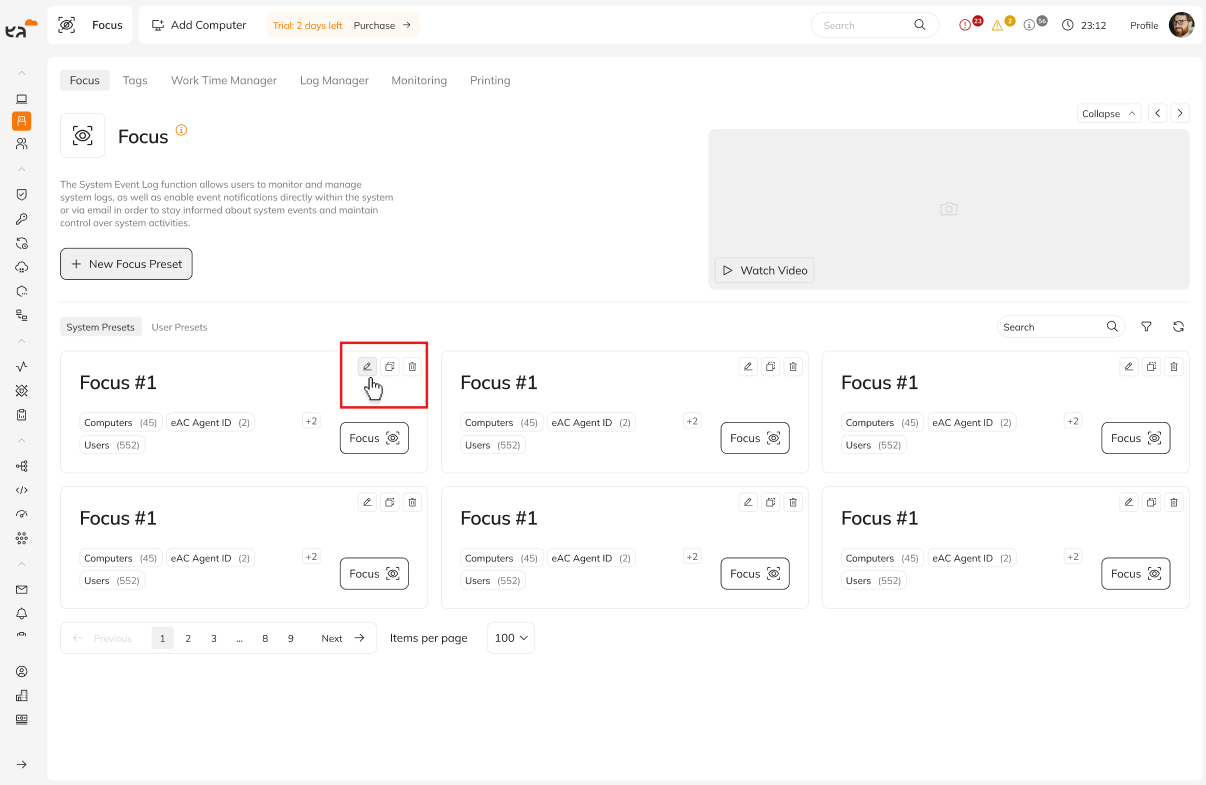
Each filter is displayed as a tile containing:
* **Filter name.**
* **A short list of parameters.** If there are more parameters, the full list can be displayed by clicking “+ \[number]”.
* **Available actions:** duplicate, edit, delete.
#### **System presets**
Predefined filters delivered with the system are ready to use in various scenarios. Predefined filters are for use only – they cannot be edited or deleted. If duplicable – creates a new filter in the User Presets section with the suffix (copy).
* **Servers** – Displays devices running Windows Server.
* **Desktops** – Displays PC-class devices.
{% hint style="info" %}
**\[System presets]** We are working on this functionality. We will announce its deployment in the changelog as soon as it becomes available.
{% endhint %}
#### User presets
Filters created by the user, which can be edited, deleted, and duplicated.
## **Adding a new filter (**User presets**)**
After clicking the button **“Add New Preset”** opens a configuration panel in a side menu on the right.
### **Filter configuration:**
* **Filter Name** – Text field for entering a unique filter name.
* **Description (optional)** – Additional information about the filter.
* **Adding parameters to the filter**:
1. Select parameters describing devices from the dropdown list.
Available parameters:
1. **Computer IP** - device IP address
2. **Organizational unit** - device's organizational affiliation
3. **Computer** - device name detected in BIOS by the agent
4. **Location** - assigned device location
5. **Computer status** - current device status Online or Offline
6. **Device type** - device classification, e.g., physical computer or virtual machine
7. **Operating system** - operating system name and version
8. **User** - selected user available in the system; when Focus is activated, data related only to that specific user are displayed.
9. **Tag** - filtering based on tags assigned to items in the system, such as users, computers, or devices.
10. **Computer name** - device name visible in the eAuditor cloud system.
11. **Intel vPro** - information whether the device has a processor with Intel vPro technology
12. **Agent ID** - unique identifier assigned to the agent installed on the device
* **Parameter configuration**:
1. For each parameter you can select a value from the list.
2. Ability to add any number of parameters.
{% hint style="info" %}
**Filter logic:**
* **AND** – Relationship between different parameters (e.g., operating system AND user).
{% endhint %}
#### **Completion:**
* **Cancel** – Discard changes.
* **Save changes** – Save the filter.
## **Editing and duplicating filters**
### **Duplicating:**
1. Click the **copy** icon on the filter tile.
2. The duplicate will be saved as a new filter in the **User presets** section with the suffix **Copy**.
### **Editing:**
1. Click the **pencil**  icon on the filter tile.
2. Make changes to the configuration.
3. Save the changes or discard them.
### **Deleting:**
1. Click the **trash**  icon on the filter tile.
2. Save the changes or discard them.
## **Focus operation in the top bar**
Focus available in the system top bar enables application of global filters across the entire system.
### **Modes of operation**
#### **Quick Focus**
Simplified, one-time filtering based on selected parameters.
#### **Focus presets**
Selection of saved filter templates with the option to apply them in bulk.
### **Filter activation:**
* Click the Focus icon to select and activate the filter.
* When the filter is active, the Focus button is highlighted in orange.

* Disabling the filter deactivates the highlight.
## **Summary**
The **Focus** in the eAuditor system enables creation of advanced global filters that can be applied across the entire system. The intuitive interface allows users to easily manage filters, and the extended filter logic permits precise criteria matching. Focus provides an efficient tool for organizing and analyzing data.
---
# Agent Instructions
This documentation is published with GitBook. GitBook is the documentation platform designed so that both humans and AI agents can read, navigate, and reason over technical content effectively. Learn more at gitbook.com.
## Querying This Documentation
If you need additional information that is not directly available in this page, you can query the documentation dynamically by asking a question.
Perform an HTTP GET request on the current page URL with the `ask` query parameter, and the optional `goal` query parameter:
```
GET https://eaclouddoc.eauditor.eu/eacloud-docs-en/features/tools/configuration/focus.md?ask=&goal=
```
`ask` is the immediate question: it should be specific, self-contained, and written in natural language.
`goal` is optional and describes the broader end goal you are ultimately trying to accomplish on behalf of the user. GitBook uses it to tailor the answer towards what is most useful for that goal.
The response will contain a direct answer to the question and relevant excerpts and sources from the documentation.
Use this mechanism when the answer is not explicitly present in the current page, you need clarification or additional context, or you want to retrieve related documentation sections.

 Each filter is displayed as a tile containing:
* **Filter name.**
* **A short list of parameters.** If there are more parameters, the full list can be displayed by clicking “+ \[number]”.
* **Available actions:** duplicate, edit, delete.
Each filter is displayed as a tile containing:
* **Filter name.**
* **A short list of parameters.** If there are more parameters, the full list can be displayed by clicking “+ \[number]”.
* **Available actions:** duplicate, edit, delete.

 Available parameters:
1. **Computer IP** - device IP address
2. **Organizational unit** - device's organizational affiliation
3. **Computer** - device name detected in BIOS by the agent
4. **Location** - assigned device location
5. **Computer status** - current device status Online or Offline
6. **Device type** - device classification, e.g., physical computer or virtual machine
7. **Operating system** - operating system name and version
8. **User** - selected user available in the system; when Focus is activated, data related only to that specific user are displayed.
9. **Tag** - filtering based on tags assigned to items in the system, such as users, computers, or devices.
10. **Computer name** - device name visible in the eAuditor cloud system.
11. **Intel vPro** - information whether the device has a processor with Intel vPro technology
12. **Agent ID** - unique identifier assigned to the agent installed on the device
* **Parameter configuration**:
1. For each parameter you can select a value from the list.
2. Ability to add any number of parameters.
Available parameters:
1. **Computer IP** - device IP address
2. **Organizational unit** - device's organizational affiliation
3. **Computer** - device name detected in BIOS by the agent
4. **Location** - assigned device location
5. **Computer status** - current device status Online or Offline
6. **Device type** - device classification, e.g., physical computer or virtual machine
7. **Operating system** - operating system name and version
8. **User** - selected user available in the system; when Focus is activated, data related only to that specific user are displayed.
9. **Tag** - filtering based on tags assigned to items in the system, such as users, computers, or devices.
10. **Computer name** - device name visible in the eAuditor cloud system.
11. **Intel vPro** - information whether the device has a processor with Intel vPro technology
12. **Agent ID** - unique identifier assigned to the agent installed on the device
* **Parameter configuration**:
1. For each parameter you can select a value from the list.
2. Ability to add any number of parameters.
 {% hint style="info" %}
**Filter logic:**
* **AND** – Relationship between different parameters (e.g., operating system AND user).
{% endhint %}
#### **Completion:**
* **Cancel** – Discard changes.
* **Save changes** – Save the filter.
## **Editing and duplicating filters**
{% hint style="info" %}
**Filter logic:**
* **AND** – Relationship between different parameters (e.g., operating system AND user).
{% endhint %}
#### **Completion:**
* **Cancel** – Discard changes.
* **Save changes** – Save the filter.
## **Editing and duplicating filters**
 ### **Duplicating:**
1. Click the **copy** icon on the filter tile.
2. The duplicate will be saved as a new filter in the **User presets** section with the suffix **Copy**.
### **Editing:**
1. Click the **pencil**  icon on the filter tile.
2. Make changes to the configuration.
3. Save the changes or discard them.
### **Deleting:**
1. Click the **trash**  icon on the filter tile.
2. Save the changes or discard them.
### **Duplicating:**
1. Click the **copy** icon on the filter tile.
2. The duplicate will be saved as a new filter in the **User presets** section with the suffix **Copy**.
### **Editing:**
1. Click the **pencil**  icon on the filter tile.
2. Make changes to the configuration.
3. Save the changes or discard them.
### **Deleting:**
1. Click the **trash**  icon on the filter tile.
2. Save the changes or discard them.

 #### **Focus presets**
Selection of saved filter templates with the option to apply them in bulk.
#### **Focus presets**
Selection of saved filter templates with the option to apply them in bulk.
 ### **Filter activation:**
* Click the Focus icon to select and activate the filter.
* When the filter is active, the Focus button is highlighted in orange.

* Disabling the filter deactivates the highlight.
### **Filter activation:**
* Click the Focus icon to select and activate the filter.
* When the filter is active, the Focus button is highlighted in orange.

* Disabling the filter deactivates the highlight.
 ## **Summary**
The **Focus** in the eAuditor system enables creation of advanced global filters that can be applied across the entire system. The intuitive interface allows users to easily manage filters, and the extended filter logic permits precise criteria matching. Focus provides an efficient tool for organizing and analyzing data.
---
# Agent Instructions
This documentation is published with GitBook. GitBook is the documentation platform designed so that both humans and AI agents can read, navigate, and reason over technical content effectively. Learn more at gitbook.com.
## Querying This Documentation
If you need additional information that is not directly available in this page, you can query the documentation dynamically by asking a question.
Perform an HTTP GET request on the current page URL with the `ask` query parameter, and the optional `goal` query parameter:
```
GET https://eaclouddoc.eauditor.eu/eacloud-docs-en/features/tools/configuration/focus.md?ask=
## **Summary**
The **Focus** in the eAuditor system enables creation of advanced global filters that can be applied across the entire system. The intuitive interface allows users to easily manage filters, and the extended filter logic permits precise criteria matching. Focus provides an efficient tool for organizing and analyzing data.
---
# Agent Instructions
This documentation is published with GitBook. GitBook is the documentation platform designed so that both humans and AI agents can read, navigate, and reason over technical content effectively. Learn more at gitbook.com.
## Querying This Documentation
If you need additional information that is not directly available in this page, you can query the documentation dynamically by asking a question.
Perform an HTTP GET request on the current page URL with the `ask` query parameter, and the optional `goal` query parameter:
```
GET https://eaclouddoc.eauditor.eu/eacloud-docs-en/features/tools/configuration/focus.md?ask=