> For the complete documentation index, see [llms.txt](https://eaclouddoc.eauditor.eu/llms.txt). Markdown versions of documentation pages are available by appending `.md` to page URLs; this page is available as [Markdown](https://eaclouddoc.eauditor.eu/eacloud-docs-en/features/account-management/organization.md).
# Organization
View **Organization** enables creating and managing structures within the IT infrastructure, as well as assigning roles and permissions to administrators. The functionality allows easy organization of users and resources, facilitating management of the organizational structure.
## Organizations
Tab **Organizations** allows defining and managing organizational structures. In this section administrators can create main structures (e.g., company branches) and their substructures.
### **Creating and managing teams**
**Creating new teams**
* Click **+** next to the organizational structure.
* Enter the name and description of the new team.
{% hint style="info" %}
If you want to create a substructure, i.e., assign a structure to one already existing in the system, click the structure that should be the parent. It will be highlighted, as in the example on the screenshot.

Effect:

{% endhint %}
* Confirm the operation by clicking **Create item**.
### **Editing existing structures**
To edit an existing structure:
* If you want to edit an element in an existing structure, select the element of interest in the organizational structure column, then click the icon **edit.**
* Make changes to the selected part of the structure.
* Confirm the changes by saving them.
To add a new element to an existing structure:
* Select **The edit icon,** then the place in the structure where you want to add the new element, enter the name for the new element, confirm the changes.
### **Deleting structures**
To delete an organization, select **structure element,** then click the button **Delete** with the trash icon. The system will ask for confirmation of the operation, then request the password.
## **Administrators**
Tab **Administrators** enables managing system administrators and assigning them appropriate access permissions to resources. The tab is divided into two main sections: **Groups** and **Administrators**.
### **Groups**
The **Groups** contains information about permission groups, such as creation date and the number of assigned administrators.
A group defines the scope of system permissions - **roles** - for administrators assigned to it.
In this section you can also check the roles assigned to a given group in the system and any association with an RBAC group in the domain.
**Group functions**
* **Enabling/disabling a group**: Groups can be activated or deactivated. Deactivating a group revokes system access for all administrators assigned to it.
* **Editing a group**: Ability to edit the name, description, assigned roles and access.
* **Administrator preview**: Displaying the list of administrators assigned to a given group.
#### **Creating a new group**
To create a new group of administrators, perform the following steps:
* Click the **Create group**.
* Enter the team name; optionally you can add a description of the group.
* Specify the level of access to selected structures (**No access**, **Read only**, **Full access**).
* Assign appropriate roles in the system by specifying administrators' permission levels. [More about roles in the system](#role-i-uprawnienia).
* Confirm the changes by clicking **Create group**.
**Editing a group**
During group editing an icon responsible for the group's status is available. Switching the group to **Inactive** revokes system access for all assigned administrators.
{% hint style="danger" %}
**Note**: Administrators assigned exclusively to this group lose access to the system if it is deactivated.
{% endhint %}
#### **Deleting a group**
* To delete a team, select the trash icon **Delete** . Deleting a team requires confirmation of the operation and entering a password.
### **Administrators**
Tab **Administrators** enables adding new administrators to the system. Administrators can be added through two options: **Invite a new administrator** or **Create a new account**.
#### Adding a new administrator
To add a new administrator, perform the following steps:
* Select the option **Add admin**.
* Enter the e-mail address of the person you want to invite as an administrator.
* Select the administrator group with the assigned roles and permissions to be granted to the new administrator.
* Confirm the invitation.
#### **Import from Entra ID**
{% hint style="info" %}
**\[Import from Entra ID]** We are working on this functionality. We will announce its deployment in the changelog as soon as it becomes available.
{% endhint %}
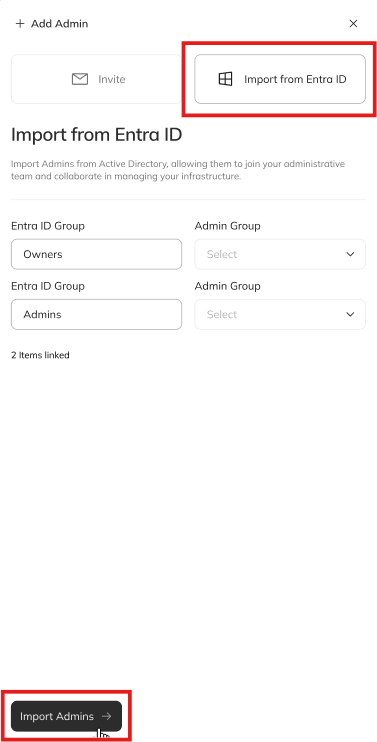
The system allows importing administrators from **Entra ID**. This import is configured by the main administrator in the **User profile**tab. After starting the import the system retrieves all users from the groups **Entra ID**who are assigned to permission roles in the system. The import concerns administrator groups linked to the **eAuditor Cloud**.
{% hint style="info" %}
**Linking groups with RBAC.** Administrator groups can be associated with permission-based roles **RBAC** (Role-Based Access Control), which enables even more precise role assignment and access control in the system.
{% endhint %}
#### **Editing administrator accounts**
To edit an administrator's details:
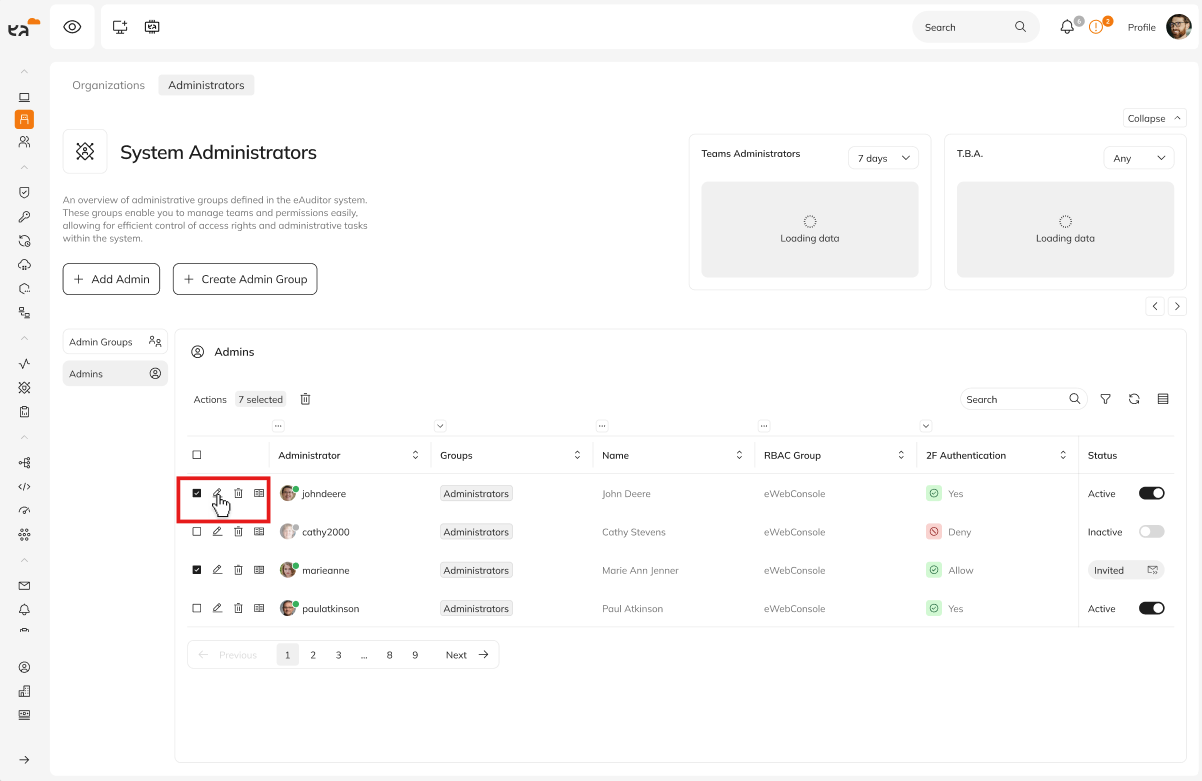
* Select the administrator from the list.
* Click **Edit**to change their details, assign them to a different administrator group or modify their permissions.
{% hint style="info" %}
Two-factor authentication (**2FA**) can be configured globally from the **User panel**. Enabling this feature increases login security to the system.
{% endhint %}
{% hint style="warning" %}
**Editing the Administrator account** - the user who created the account in the eAuditor Cloud system and is assigned to the default “Administrator” group - **is restricted.**
This account cannot be edited or deleted. Only the password and authentication method can be changed.
{% endhint %}
#### **Deleting administrator accounts**
To delete an administrator account:
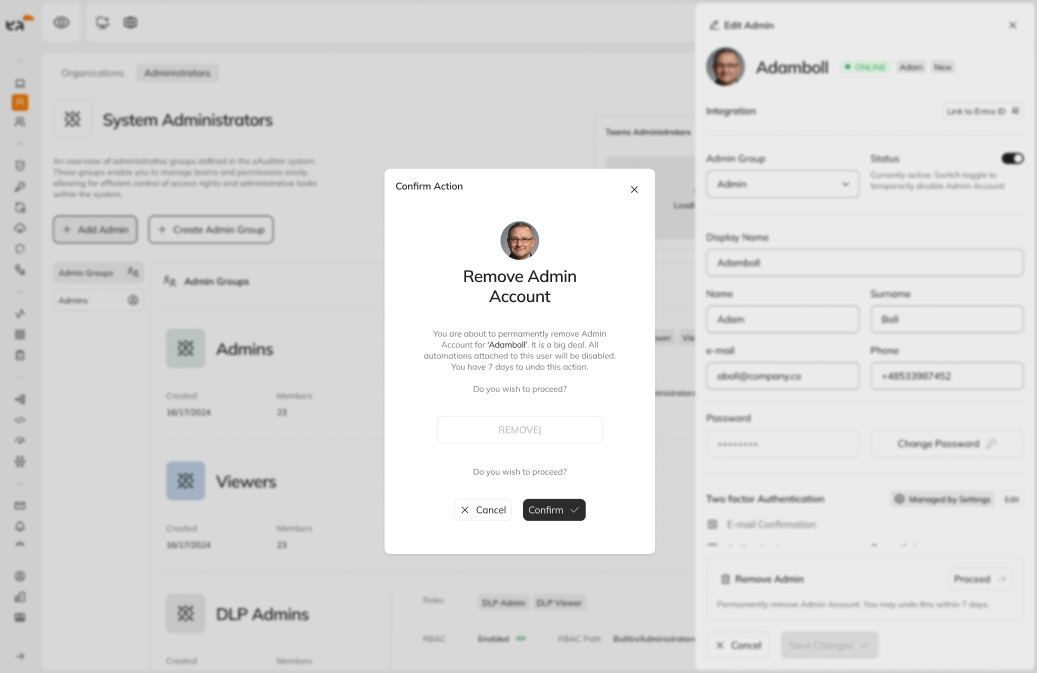
1. Click **Delete administrator** for the selected administrator.
2. Confirm the operation to remove the account. Deleting an administrator requires confirmation by the person performing this operation.
{% hint style="warning" %}
**Editing the Administrator account** - the user who created the account in the eAuditor Cloud system and is assigned to the default “Administrator” group - **is restricted.**
This account cannot be edited or deleted. Only the password and authentication method can be changed.
{% endhint %}
## **Roles and permissions**
The system allows assigning specific roles and access levels to users and administrators. Roles define what operations users can perform in the system, e.g., full access, read-only access, or no access. By assigning appropriate permissions you can precisely control which resources and functions are available to individual users, ensuring security and effective system management.
Administrator
Full access to the system.
IT Service Technician
User support and configuration of computers without access to user data.
DLP Administrator
Configuring and modifying DLP settings and reviewing logs.
DLP Viewer
Access to view DLP logs only.
User Viewer
Ability to view user data.
Report Manager
Creating, managing and viewing system reports
Report Viewer
Access to view system reports only.
***
---
# Agent Instructions
This documentation is published with GitBook. GitBook is the documentation platform designed so that both humans and AI agents can read, navigate, and reason over technical content effectively. Learn more at gitbook.com.
## Querying This Documentation
If you need additional information that is not directly available in this page, you can query the documentation dynamically by asking a question.
Perform an HTTP GET request on the current page URL with the `ask` query parameter, and the optional `goal` query parameter:
```
GET https://eaclouddoc.eauditor.eu/eacloud-docs-en/features/account-management/organization.md?ask=&goal=
```
`ask` is the immediate question: it should be specific, self-contained, and written in natural language.
`goal` is optional and describes the broader end goal you are ultimately trying to accomplish on behalf of the user. GitBook uses it to tailor the answer towards what is most useful for that goal.
The response will contain a direct answer to the question and relevant excerpts and sources from the documentation.
Use this mechanism when the answer is not explicitly present in the current page, you need clarification or additional context, or you want to retrieve related documentation sections.


 {% hint style="info" %}
If you want to create a substructure, i.e., assign a structure to one already existing in the system, click the structure that should be the parent. It will be highlighted, as in the example on the screenshot.

Effect:

{% endhint %}
* Confirm the operation by clicking **Create item**.
### **Editing existing structures**
To edit an existing structure:
* If you want to edit an element in an existing structure, select the element of interest in the organizational structure column, then click the icon **edit.**
{% hint style="info" %}
If you want to create a substructure, i.e., assign a structure to one already existing in the system, click the structure that should be the parent. It will be highlighted, as in the example on the screenshot.

Effect:

{% endhint %}
* Confirm the operation by clicking **Create item**.
### **Editing existing structures**
To edit an existing structure:
* If you want to edit an element in an existing structure, select the element of interest in the organizational structure column, then click the icon **edit.**


 ## **Administrators**
Tab **Administrators** enables managing system administrators and assigning them appropriate access permissions to resources. The tab is divided into two main sections: **Groups** and **Administrators**.
### **Groups**
The **Groups** contains information about permission groups, such as creation date and the number of assigned administrators.
A group defines the scope of system permissions - **roles** - for administrators assigned to it.
In this section you can also check the roles assigned to a given group in the system and any association with an RBAC group in the domain.
**Group functions**
* **Enabling/disabling a group**: Groups can be activated or deactivated. Deactivating a group revokes system access for all administrators assigned to it.
* **Editing a group**: Ability to edit the name, description, assigned roles and access.
* **Administrator preview**: Displaying the list of administrators assigned to a given group.
#### **Creating a new group**
To create a new group of administrators, perform the following steps:
* Click the **Create group**.
* Enter the team name; optionally you can add a description of the group.
## **Administrators**
Tab **Administrators** enables managing system administrators and assigning them appropriate access permissions to resources. The tab is divided into two main sections: **Groups** and **Administrators**.
### **Groups**
The **Groups** contains information about permission groups, such as creation date and the number of assigned administrators.
A group defines the scope of system permissions - **roles** - for administrators assigned to it.
In this section you can also check the roles assigned to a given group in the system and any association with an RBAC group in the domain.
**Group functions**
* **Enabling/disabling a group**: Groups can be activated or deactivated. Deactivating a group revokes system access for all administrators assigned to it.
* **Editing a group**: Ability to edit the name, description, assigned roles and access.
* **Administrator preview**: Displaying the list of administrators assigned to a given group.
#### **Creating a new group**
To create a new group of administrators, perform the following steps:
* Click the **Create group**.
* Enter the team name; optionally you can add a description of the group.
 * Specify the level of access to selected structures (**No access**, **Read only**, **Full access**).
 * Assign appropriate roles in the system by specifying administrators' permission levels. [More about roles in the system](#role-i-uprawnienia).
 * Confirm the changes by clicking **Create group**.
**Editing a group**
During group editing an icon responsible for the group's status is available. Switching the group to **Inactive** revokes system access for all assigned administrators.
{% hint style="danger" %}
**Note**: Administrators assigned exclusively to this group lose access to the system if it is deactivated.
{% endhint %}
#### **Deleting a group**
* To delete a team, select the trash icon **Delete** . Deleting a team requires confirmation of the operation and entering a password.
* Confirm the changes by clicking **Create group**.
**Editing a group**
During group editing an icon responsible for the group's status is available. Switching the group to **Inactive** revokes system access for all assigned administrators.
{% hint style="danger" %}
**Note**: Administrators assigned exclusively to this group lose access to the system if it is deactivated.
{% endhint %}
#### **Deleting a group**
* To delete a team, select the trash icon **Delete** . Deleting a team requires confirmation of the operation and entering a password.
 ### **Administrators**
Tab **Administrators** enables adding new administrators to the system. Administrators can be added through two options: **Invite a new administrator** or **Create a new account**.
#### Adding a new administrator
To add a new administrator, perform the following steps:
* Select the option **Add admin**.
### **Administrators**
Tab **Administrators** enables adding new administrators to the system. Administrators can be added through two options: **Invite a new administrator** or **Create a new account**.
#### Adding a new administrator
To add a new administrator, perform the following steps:
* Select the option **Add admin**.
 * Enter the e-mail address of the person you want to invite as an administrator.
 * Select the administrator group with the assigned roles and permissions to be granted to the new administrator.
* Confirm the invitation.
#### **Import from Entra ID**
{% hint style="info" %}
**\[Import from Entra ID]** We are working on this functionality. We will announce its deployment in the changelog as soon as it becomes available.
{% endhint %}
The system allows importing administrators from **Entra ID**. This import is configured by the main administrator in the **User profile**tab. After starting the import the system retrieves all users from the groups **Entra ID**who are assigned to permission roles in the system. The import concerns administrator groups linked to the **eAuditor Cloud**.
* Select the administrator group with the assigned roles and permissions to be granted to the new administrator.
* Confirm the invitation.
#### **Import from Entra ID**
{% hint style="info" %}
**\[Import from Entra ID]** We are working on this functionality. We will announce its deployment in the changelog as soon as it becomes available.
{% endhint %}
The system allows importing administrators from **Entra ID**. This import is configured by the main administrator in the **User profile**tab. After starting the import the system retrieves all users from the groups **Entra ID**who are assigned to permission roles in the system. The import concerns administrator groups linked to the **eAuditor Cloud**.
 {% hint style="info" %}
**Linking groups with RBAC.** Administrator groups can be associated with permission-based roles **RBAC** (Role-Based Access Control), which enables even more precise role assignment and access control in the system.
{% hint style="info" %}
**Linking groups with RBAC.** Administrator groups can be associated with permission-based roles **RBAC** (Role-Based Access Control), which enables even more precise role assignment and access control in the system.
 {% endhint %}
#### **Editing administrator accounts**
To edit an administrator's details:
* Select the administrator from the list.
* Click **Edit**to change their details, assign them to a different administrator group or modify their permissions.
{% endhint %}
#### **Editing administrator accounts**
To edit an administrator's details:
* Select the administrator from the list.
* Click **Edit**to change their details, assign them to a different administrator group or modify their permissions.
 {% hint style="info" %}
Two-factor authentication (**2FA**) can be configured globally from the **User panel**. Enabling this feature increases login security to the system.
{% endhint %}
{% hint style="warning" %}
**Editing the Administrator account** - the user who created the account in the eAuditor Cloud system and is assigned to the default “Administrator” group - **is restricted.**
This account cannot be edited or deleted. Only the password and authentication method can be changed.
{% endhint %}
#### **Deleting administrator accounts**
To delete an administrator account:
1. Click **Delete administrator** for the selected administrator.
2. Confirm the operation to remove the account. Deleting an administrator requires confirmation by the person performing this operation.
{% hint style="info" %}
Two-factor authentication (**2FA**) can be configured globally from the **User panel**. Enabling this feature increases login security to the system.
{% endhint %}
{% hint style="warning" %}
**Editing the Administrator account** - the user who created the account in the eAuditor Cloud system and is assigned to the default “Administrator” group - **is restricted.**
This account cannot be edited or deleted. Only the password and authentication method can be changed.
{% endhint %}
#### **Deleting administrator accounts**
To delete an administrator account:
1. Click **Delete administrator** for the selected administrator.
2. Confirm the operation to remove the account. Deleting an administrator requires confirmation by the person performing this operation.
 {% hint style="warning" %}
**Editing the Administrator account** - the user who created the account in the eAuditor Cloud system and is assigned to the default “Administrator” group - **is restricted.**
This account cannot be edited or deleted. Only the password and authentication method can be changed.
{% endhint %}
## **Roles and permissions**
The system allows assigning specific roles and access levels to users and administrators. Roles define what operations users can perform in the system, e.g., full access, read-only access, or no access. By assigning appropriate permissions you can precisely control which resources and functions are available to individual users, ensuring security and effective system management.
{% hint style="warning" %}
**Editing the Administrator account** - the user who created the account in the eAuditor Cloud system and is assigned to the default “Administrator” group - **is restricted.**
This account cannot be edited or deleted. Only the password and authentication method can be changed.
{% endhint %}
## **Roles and permissions**
The system allows assigning specific roles and access levels to users and administrators. Roles define what operations users can perform in the system, e.g., full access, read-only access, or no access. By assigning appropriate permissions you can precisely control which resources and functions are available to individual users, ensuring security and effective system management.