> For the complete documentation index, see [llms.txt](https://eaclouddoc.eauditor.eu/llms.txt). Markdown versions of documentation pages are available by appending `.md` to page URLs; this page is available as [Markdown](https://eaclouddoc.eauditor.eu/eacloud-docs-en/system/billing-and-licensing/managing-and-canceling-a-subscription.md).
# Managing and canceling a subscription
## Subscription management and cancellation
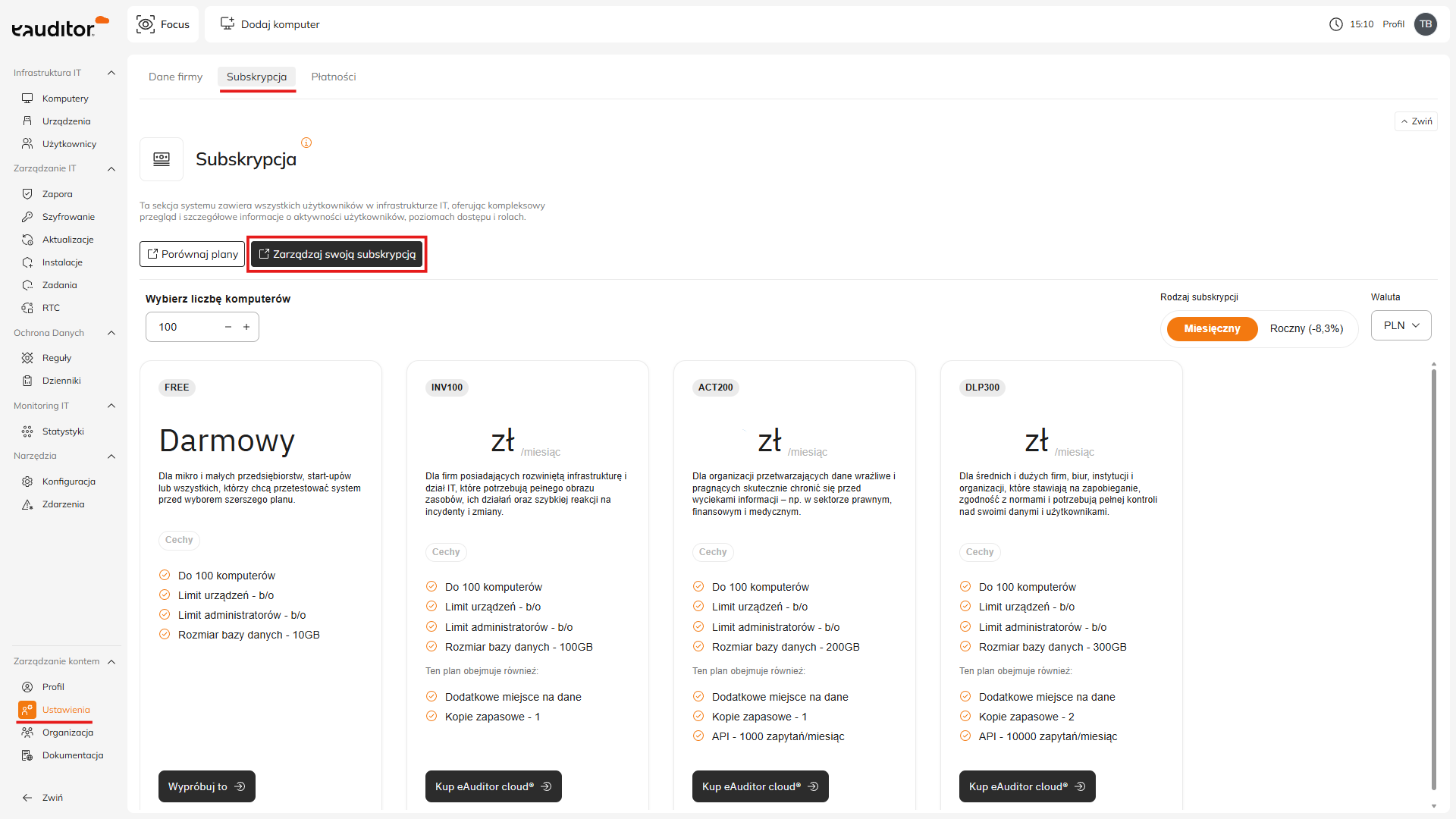
The subscription can be managed directly from within the system. Simply go to:
**Settings → Subscription → Manage your subscription**
On the management screen, the **Cancel subscription** button will appear (in the upper-right corner).\
The cancellation process is simple and does not require contacting support.
You can cancel the subscription at any time; however, according to the terms and conditions, a 30-day notice period applies. After it ends, access will be disabled automatically, and no further charges will be incurred.
### Changing the plan or number of seats
The subscription can be modified at any time, and changes take effect immediately:
* if you increase the plan or the number of seats, the system immediately raises the limits and charges an adjustment to the higher value,
* if you decrease the plan or the number of seats, the system also applies the change immediately, and the user receives a refund proportional to the unused portion of the term.
This allows you to adjust the license to your organization’s needs on an ongoing basis. The system automatically recalculates the amounts so that the billing remains transparent and fair.
#### **How billing works in Stripe**
Stripe automatically adjusts the invoice when the subscription changes:
* issues a credit for the unused portion of the current billing period
* charges the new price or the adjusted prorated rate for the remaining time in the same period
* the invoice is settled immediately when the subscription is updated
{% hint style="info" %}
**Date example**
If the subscription starts on the 10th day of the month, the billing period runs from the 10th to the 10th day of the following month.
* On the 15th day of the month, the client decides to upgrade the plan
* Stripe calculates a refund for the unused time of the old plan (from the 15th to the 10th)
* this amount is deducted from the price of the new plan for the period from the 15th to the end of the current cycle
* from the 10th day of the following month, the new plan at the full price is already in effect
**Price example**
* ACT200 plan: PLN 4.40 per seat, 10 seats
* total PLN 44.00 for 30 days
* after 5 days, the client changes the plan to DLP300: PLN 6.20 per seat, 10 seats
The system:
* calculates the cost of 5 days of the old plan
* treats the remaining amount as a refund
* charges a prorated price for the new plan for the remaining 25 days
* deducts the refund from the old plan from the cost of the new one
In the next billing period, the client pays the full rate for the new plan, i.e., PLN 6.20 × 10 seats for the entire period.
{% endhint %}
In short - you pay only for what you actually use. No manual adjustments and no unnecessary invoice complications.
---
# Agent Instructions
This documentation is published with GitBook. GitBook is the documentation platform designed so that both humans and AI agents can read, navigate, and reason over technical content effectively. Learn more at gitbook.com.
## Querying This Documentation
If you need additional information that is not directly available in this page, you can query the documentation by asking a question.
Perform an HTTP GET request on the following URL with the `ask` and `goal` query parameters:
```
GET https://eaclouddoc.eauditor.eu/eacloud-docs-en/system/billing-and-licensing/managing-and-canceling-a-subscription.md?ask=&goal=
```
`ask` is the immediate question: it should be specific, self-contained, and written in natural language.
`goal` is what the user is ultimately trying to achieve, the reason they need the answer. Sharing it helps GitBook give you a better, more relevant answer. A goal is most helpful when it describes the outcome the user wants rather than restating the question. For example, with `ask=how do I create an API token`, a goal like `automate deployments from our CI pipeline` lets GitBook tailor the answer to that use case.
The response will contain a direct answer to the question and relevant excerpts and sources from the documentation.
Use this mechanism when the answer is not explicitly present in the current page, you need clarification or additional context, or you want to retrieve related documentation sections.