> For the complete documentation index, see [llms.txt](https://eaclouddoc.eauditor.eu/llms.txt). Markdown versions of documentation pages are available by appending `.md` to page URLs; this page is available as [Markdown](https://eaclouddoc.eauditor.eu/eacloud-docs-en/features/it-management/rtc/establishing-an-rtc-connection/rtc-connection-settings.md).

# RTC connection settings

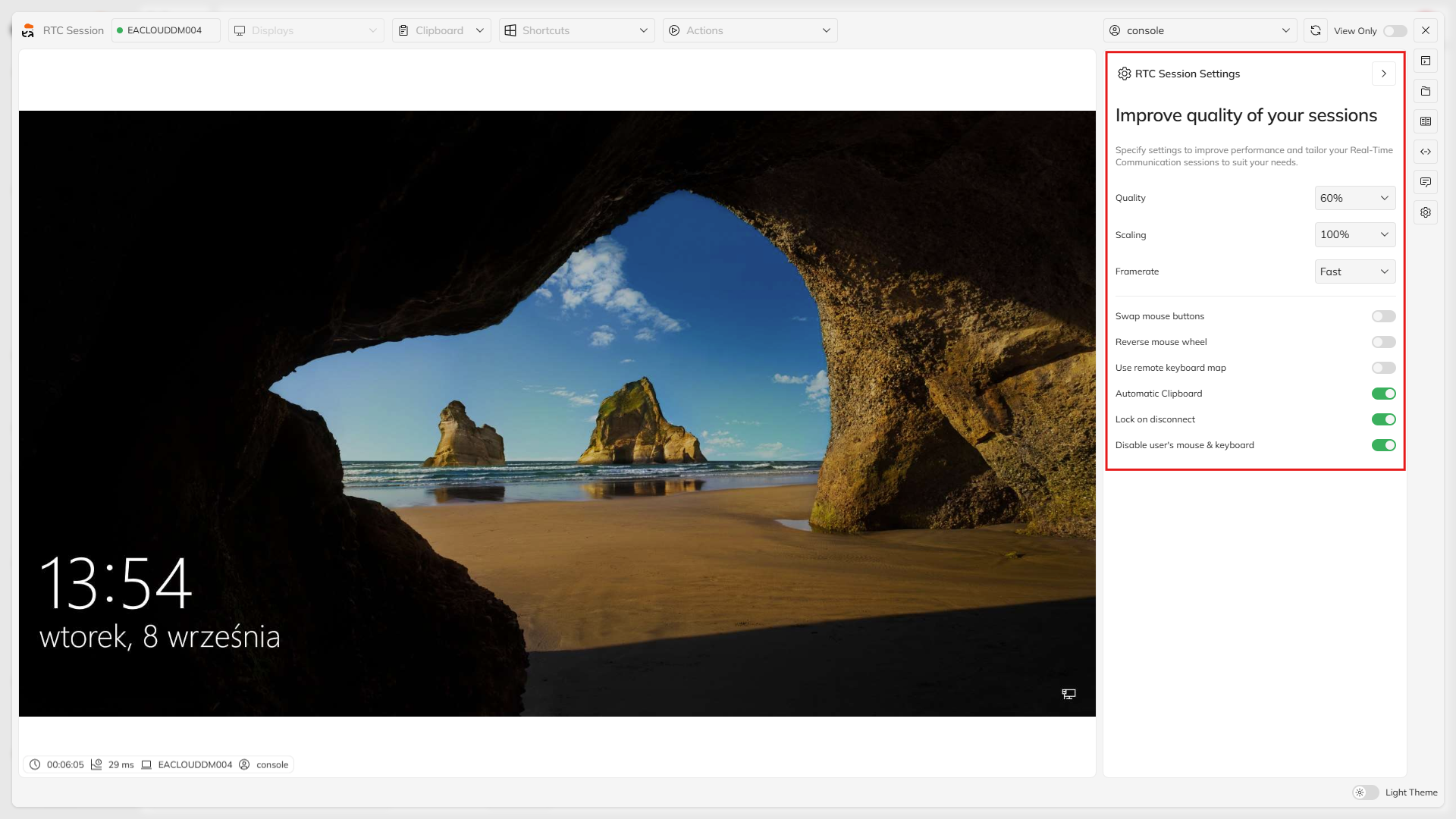
During an active RTC session, the administrator can adjust image parameters and the way the remote computer is controlled.

The settings allow the session behavior to be adapted to connection quality, the number of monitors, and the administrator's working method.

<figure><img src="https://3262380731-files.gitbook.io/~/files/v0/b/gitbook-x-prod.appspot.com/o/spaces%2Fdzip3GyvGq5q5J3qckWN%2Fuploads%2FBsXfYimvmJVmCMOFWDSS%2Fimage.png?alt=media&amp;token=b32e4f1e-3e98-4d4c-ac9a-ba49b2fac9ab" alt="Panel ustawień umożliwiający zmianę parametrów aktywnej sesji RTC." width="375"><figcaption><p><em>Settings panel that enables changing the parameters of an active RTC session.</em></p></figcaption></figure>

### Image settings

Image parameters allow the display of the remote desktop to be adjusted.

Depending on the available settings, the administrator can change, among other things:

* transmitted image quality,
* image scaling method,
* the number of frames transmitted during the session,
* the remote desktop display mode.

Reducing image quality or the number of transmitted frames can be helpful when the network connection is weaker or unstable.

{% hint style="info" %}
Higher image quality can increase the amount of data transmitted during an RTC session.
{% endhint %}

### Image scaling

RTC allows the remote computer image to be adjusted to the area available in the browser.

The scaling function makes it easier to work with computers using a different resolution than the administrator's device.

<figure><img src="https://3262380731-files.gitbook.io/~/files/v0/b/gitbook-x-prod.appspot.com/o/spaces%2Fdzip3GyvGq5q5J3qckWN%2Fuploads%2FVbETQF1ItXDdIyGP8Yjv%2Fimage.png?alt=media&amp;token=63ae8361-f80c-4151-9134-bf366a171b79" alt="Opcje odpowiedzialne za sposób wyświetlania i skalowania obrazu zdalnego komputera." width="197"><figcaption><p><em>Options responsible for how the remote computer image is displayed and scaled.</em></p></figcaption></figure>

### Monitor support

If the computer uses more than one monitor, the administrator can select the screen to be displayed during the RTC session.

Changing the monitor does not require ending the connection.

<figure><img src="https://3262380731-files.gitbook.io/~/files/v0/b/gitbook-x-prod.appspot.com/o/spaces%2Fdzip3GyvGq5q5J3qckWN%2Fuploads%2F0dCFmbZI7WU1i3dM1wxR%2Fimage.png?alt=media&amp;token=b7045d9d-8ecf-4d61-b763-2b42bdd14615" alt="Opcja wyboru monitora podłączonego do zdalnego komputera." width="375"><figcaption><p><em>Option to select a monitor connected to the remote computer.</em></p></figcaption></figure>

### Keyboard and mouse

Session settings also include how the keyboard and mouse are handled.

<figure><img src="https://3262380731-files.gitbook.io/~/files/v0/b/gitbook-x-prod.appspot.com/o/spaces%2Fdzip3GyvGq5q5J3qckWN%2Fuploads%2FgfedXrPo3rDtQSPsJDkg%2Fimage.png?alt=media&amp;token=4d77244a-6bc4-41ab-b2f0-99d946e3a60b" alt="Ustawienia Klawiatury i Myszy" width="192"><figcaption><p><em>Keyboard and Mouse Settings</em></p></figcaption></figure>

Depending on the selected configuration, the administrator can use functions that enable remote control of the computer and forwarding locally performed actions to it.

RTC also provides the ability to send selected keyboard shortcuts directly to the remote system.

<figure><img src="https://3262380731-files.gitbook.io/~/files/v0/b/gitbook-x-prod.appspot.com/o/spaces%2Fdzip3GyvGq5q5J3qckWN%2Fuploads%2F7jQVRUk2s516dt5zX8dL%2Fimage.png?alt=media&amp;token=00cb69fb-de14-4e96-872d-167cda6c1c23" alt="Wybrane skróty klawiszowe w RTC." width="375"><figcaption><p><em>Selected keyboard shortcuts in RTC.</em></p></figcaption></figure>

### Clipboard

During an RTC session, a shared clipboard can be used.

The function allows copying and pasting content between the administrator's computer and the remote computer.

Clipboard operation can be controlled from the active session settings.

Two ways of using the clipboard are available:

* **Automatic clipboard** - copied content is automatically synchronized between the administrator's computer and the remote computer. Standard copy and paste operations can be used, e.g., **Ctrl+C** and **Ctrl+V**.
* [**Manual clipboard**](/eacloud-docs-en/features/it-management/rtc/remote-management.md) - the content must be transferred manually using the buttons **Get** and **Send**.

{% hint style="warning" %}
Before copying data between computers, make sure the operation complies with the organization's applicable security and data protection policies.

{% endhint %}

### Full-screen mode

Exiting full-screen mode does not end the RTC session.

<figure><img src="https://3262380731-files.gitbook.io/~/files/v0/b/gitbook-x-prod.appspot.com/o/spaces%2Fdzip3GyvGq5q5J3qckWN%2Fuploads%2FILFSg4XpbX7onOL1IGg2%2Fimage.png?alt=media&amp;token=3fa7f495-4b1b-43f1-981f-66a0eaa47809" alt="sesja RTC w trybie pełnoekranowym" width="375"><figcaption><p><em>RTC session displayed in full-screen mode.</em></p></figcaption></figure>

The session can also be minimized without closing it. After minimization, the connection remains active, and the RTC session is available as a small window that can be moved around the screen.

<figure><img src="https://3262380731-files.gitbook.io/~/files/v0/b/gitbook-x-prod.appspot.com/o/spaces%2Fdzip3GyvGq5q5J3qckWN%2Fuploads%2FLEzHk9RqEpQHbjz7sQAK%2Fimage.png?alt=media&amp;token=2cbb1d13-3781-45fc-9df8-41b5bde1aaae" alt="zminimalizowana sesja RTC" width="375"><figcaption><p><em>Minimized RTC session remaining active as a small window.</em></p></figcaption></figure>

Clicking the minimized window allows you to return to the full view of the active session at any time.

### FAQ

<details>

<summary><strong>Can connection settings be changed during an active RTC session?</strong></summary>

Yes. Session parameters can be changed during an active connection without needing to re-establish it.

</details>

<details>

<summary><strong>What should be done if the image during the RTC session is sluggish?</strong></summary>

First, it is worth reducing the image quality or the number of transmitted frames.

This may reduce the amount of data transmitted and improve session responsiveness on a weaker network connection.

</details>

<details>

<summary><strong>Can the monitor be changed without disconnecting the session?</strong></summary>

Yes. If the computer uses multiple monitors, the administrator can switch between them during an active RTC connection.

</details>

<details>

<summary><strong>Does changing full-screen mode end the RTC connection?</strong></summary>

No. Enabling or disabling full-screen mode affects only the way the remote desktop is displayed and does not end the session.

</details>

<details>

<summary><strong>Can the clipboard be used during an RTC session?</strong></summary>

Yes. RTC enables the use of a shared clipboard between the administrator's computer and the remote computer.

</details>


---

# Agent Instructions
This documentation is published with GitBook. GitBook is the documentation platform designed so that both humans and AI agents can read, navigate, and reason over technical content effectively. Learn more at gitbook.com.

## Querying This Documentation
If you need additional information that is not directly available in this page, you can query the documentation dynamically by asking a question.

Perform an HTTP GET request on the current page URL with the `ask` query parameter, and the optional `goal` query parameter:

```
GET https://eaclouddoc.eauditor.eu/eacloud-docs-en/features/it-management/rtc/establishing-an-rtc-connection/rtc-connection-settings.md?ask=<question>&goal=<endgoal>
```

`ask` is the immediate question: it should be specific, self-contained, and written in natural language.
`goal` is optional and describes the broader end goal you are ultimately trying to accomplish on behalf of the user. GitBook uses it to tailor the answer towards what is most useful for that goal.

The response will contain a direct answer to the question and relevant excerpts and sources from the documentation.

Use this mechanism when the answer is not explicitly present in the current page, you need clarification or additional context, or you want to retrieve related documentation sections.
