> For the complete documentation index, see [llms.txt](https://eaclouddoc.eauditor.eu/llms.txt). Markdown versions of documentation pages are available by appending `.md` to page URLs; this page is available as [Markdown](https://eaclouddoc.eauditor.eu/eacloud-docs-en/features/data-loss-prevention/triggers/file-operations.md).

# File Operations

Trigger **File operations** enables monitoring of activities performed on files and folders.

It allows you to precisely define which operations are to be monitored and to narrow the rule’s scope, among others, to:

* specified locations,
* file names or file types,
* selected types of media,
* specified processes,
* files with the specified tag.

As a result, the rule can respond *for example, only to opening files `.txt` located on the user’s desktop or to deleting tagged documents from a network share.*

{% hint style="info" %}
The rule can contain only **one trigger**. Within the trigger **File operations** you can, however, specify more than one type of operation, for example, opening and deleting files at the same time.
{% endhint %}

{% hint style="warning" %}
Avoid unnecessarily broad configurations that include all locations, files, and processes. Monitoring a very large number of operations can generate many events and affect computer performance.
{% endhint %}

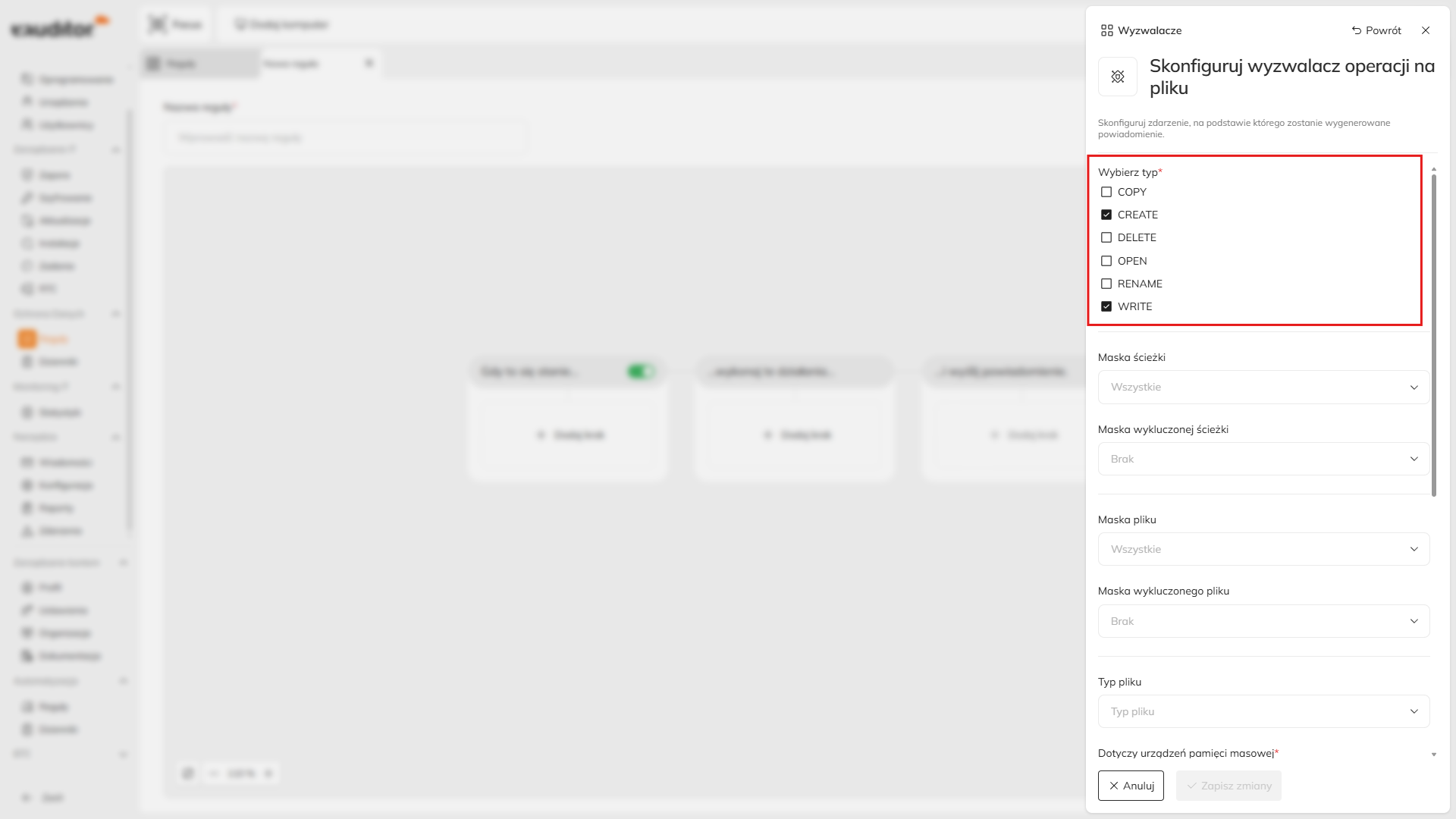
### File operation types

The trigger can monitor the following operations:

| Operation       | What is monitored                                          |
| --------------- | ---------------------------------------------------------- |
| **Creation**    | Creation of a new file (including the “Save As” operation) |
| **Deletion**    | Deletion of a file                                         |
| **Open**        | Opening a file, also by a specified process                |
| **Rename/move** | Changing the file name or location                         |
| **Save**        | Saving changes to a file                                   |

{% hint style="info" %}
**Creation** applies to creating a new file from scratch, also as a result of using the option **Save As**.

**Save** applies to saving changes in a file that already exists, for example after selecting **Save** in an application or as a result of automatic saving.
{% endhint %}

You can select more than one type of operation within the same trigger.

<figure><img src="https://3262380731-files.gitbook.io/~/files/v0/b/gitbook-x-prod.appspot.com/o/spaces%2Fdzip3GyvGq5q5J3qckWN%2Fuploads%2FXReJcYGzMRexwt4HCQ6j%2Fimage.png?alt=media&amp;token=85d19319-0ab8-41bf-a088-dd7273c5819d" alt="Konfiguracja wyzwalacza Operacje na pliku w eAuditor Cloud z listą monitorowanych operacji oraz parametrami plików, lokalizacji, nośników i procesów." width="375"><figcaption><p><em>The trigger allows you to define both the type of operation and the objects to which it applies.</em></p></figcaption></figure>

### Trigger configuration

{% stepper %}
{% step %}

#### Open the rule configuration

Create a new rule or open an existing rule for editing.
{% endstep %}

{% step %}

#### Select a trigger

In the **Triggers** section, select:

**File operations**
{% endstep %}

{% step %}

#### Select the operation type

Specify the operations to be monitored.

You can select:

* **Creation**,
* **Deletion**,
* **Open**,
* **Rename/move**,
* **Save**.

Multiple operations can be selected at the same time.
{% endstep %}

{% step %}

#### Specify files and locations

Depending on your needs, configure:

* path mask,
* excluded path mask,
* file mask,
* excluded file mask.

This allows you to limit the trigger’s scope to selected locations and files.
{% endstep %}

{% step %}

#### Select the object type

Specify whether monitoring is to apply to:

* files,
* folders,
* files and folders.
  {% endstep %}

{% step %}

#### Select media

Specify the types of media on which operations are to be monitored.

You can specify, among others, a local drive, external drive, USB flash drive, or network share.
{% endstep %}

{% step %}

#### Optionally specify processes

If the rule is to apply only to operations performed by specific programs, configure the process mask.

You can also specify processes to exclude.
{% endstep %}

{% step %}

#### Optionally select [tag](/eacloud-docs-en/features/data-loss-prevention/file-classification-and-labeling.md)

If tags have been created in the system, you can limit the rule’s scope to files with the selected tag.
{% endstep %}

{% step %}

#### Configure actions and notifications

Specify the system response after the operation is detected.

You can assign multiple actions and multiple notifications to one rule.
{% endstep %}

{% step %}

#### Save the rule and update policies

Save the configuration, assign the rule to the appropriate policy, and then click:

**Update policies**
{% endstep %}
{% endstepper %}

### Path mask

Field **Path mask** specifies the locations where operations are to be monitored.

Examples:

```
H:\desktop\test
H:\*
```

includes locations on the H: drive.&#x20;

### Excluded path mask&#x20;

The Excluded path mask field allows you to exclude specific locations from a broader configuration.

Example:

Path mask: **H:\***

Exclusion: **H:\desktop\test**

In this case, operations on the H: drive can be monitored except for the specified folder.

{% hint style="info" %}
Exclusions are useful when you want the rule to cover a broad range of locations, but skip specific folders.
{% endhint %}

### File mask&#x20;

The File mask field specifies the files covered by monitoring.

Examples:&#x20;

```
invoice.pdf
invoice*.pdf
*.txt
*.jpg
```

The mask can therefore specify:

* a specific file,
* a group of files with a similar name,
* all files with a specified extension. Excluded file mask The Excluded file mask field allows you to skip specific files or groups of files.

Example:

File mask: **\*.jpg**

Exclusion mask: **test.jpg**

The rule will cover JPG files except for test.jpg.

<figure><img src="https://3262380731-files.gitbook.io/~/files/v0/b/gitbook-x-prod.appspot.com/o/spaces%2Fdzip3GyvGq5q5J3qckWN%2Fuploads%2FeYVaMG0XCcb8zkgLcrG5%2Fimage.png?alt=media&amp;token=fcd07ed2-5f9b-48c9-b9c4-7d92dafa2370" alt="Pola Maski ścieżek, Maski plików oraz ich wykluczeń w konfiguracji wyzwalacza Operacje na pliku." width="375"><figcaption><p>The Path mask, File mask, and their exclusions fields in the configuration of the File operations trigger.</p></figcaption></figure>

Masks allow you to precisely define the locations and files covered by the rule. File type The File type field specifies the type of objects to which the monitored operations are to apply.

Available options:

* Folders - monitoring of operations performed on folders,
* Files - monitoring of operations performed on files,
* Files and folders - monitoring of both types of objects. Select the setting appropriate for the type of operation you want to control. Media The Applies to media field specifies the types of storage on which the monitored files or folders are to be located.

You can specify:

* Local drive,
* External drive,
* USB flash drive,
* Network share. More than one type of media can be selected. USB device groups After selecting the USB flash drive option, additional configuration for USB device groups is available.

The list initially contains the option:

**All**

You can also specify previously created USB device groups.

As a result, the rule can apply to all USB storage devices or only to media belonging to a specific group.

<figure><img src="https://3262380731-files.gitbook.io/~/files/v0/b/gitbook-x-prod.appspot.com/o/spaces%2Fdzip3GyvGq5q5J3qckWN%2Fuploads%2Fhv7jRJGJhRizCeo9HMeV%2Fimage.png?alt=media&amp;token=49af6806-492b-4951-95f8-b510a96ebac3" alt="Konfiguracja nośników w wyzwalaczu Operacje na pliku z opcjami Dysk lokalny, Dysk zewnętrzny, Pendrive i Udział sieciowy." width="375"><figcaption><p><em>Media configuration in the File operations trigger with the Local drive, External drive, USB flash drive, and Network share options.</em></p></figcaption></figure>

The rule can be limited to specified types of media.&#x20;

### Processes&#x20;

The process mask additionally allows you to define which program must perform the file operation for the trigger to be activated. Process mask Specifies the processes covered by the rule.

Examples: **chrome.exe** and **\*.exe**

### Excluded process mask&#x20;

Allows you to exclude a specified process from a broader configuration.

Example:

Process mask: **\*.exe**

Excluded process: **chrome.exe**

The rule can then cover operations performed by the remaining processes that match the mask, excluding chrome.exe.

{% hint style="info" %}
The process mask is useful when the same file operation should be treated differently depending on the application performing it.
{% endhint %}

### Tag&#x20;

If tags have already been created in the system, you can use them as an additional trigger condition.

This allows you to limit the rule’s scope to files with a specified label, for example, a document classification.

For example, you can:

1. set a broad mask covering all locations and files,
2. specify a particular tag,
3. make the rule apply only to files with that tag.

<figure><img src="https://3262380731-files.gitbook.io/~/files/v0/b/gitbook-x-prod.appspot.com/o/spaces%2Fdzip3GyvGq5q5J3qckWN%2Fuploads%2FcTpqnIZeT98DTF4mX16Z%2Fimage.png?alt=media&amp;token=aa9691e8-c1ae-4b1d-80fb-66a0444f3e92" alt="Pole Znacznik w konfiguracji wyzwalacza Operacje na pliku z listą dostępnych znaczników dokumentów." width="375"><figcaption><p><em>The Tag field in the configuration of the File operations trigger with a list of available document tags.</em></p></figcaption></figure>

The tag allows you to limit the rule’s scope to previously tagged files.

{% hint style="info" %}
Tags are especially useful when you want to protect a document regardless of its name or location. They are described in detail in the File classification and tagging section.
{% endhint %}

### Entering multiple values&#x20;

In fields that support multiple parameters, you can enter more than one value, for example:

* several paths,
* several file masks,
* several processes. Enter each value on a separate line and confirm with Enter.

Do not use commas or semicolons as separators.&#x20;

Example - paths:

```
C:\Users\Public
D:\Documents* 
*\Server\Share*
```

The rule will be applied if the operation concerns any of the specified paths.&#x20;

Example - files:

```
*.pdf 
*.docx 
*.xlsx 
testABCD.*
```

The rule will be applied to a PDF, DOCX, XLSX file, or a file named testABCD with any extension.

{% hint style="info" %}
Multiple values within the same field work according to OR logic. It is sufficient for one of the specified conditions to be met.
{% endhint %}

### How are different fields combined?

When configuring a trigger, it is important to distinguish between:

* multiple values in one field,
* conditions defined in different fields.

If you enter several values in one field, for example several file masks, meeting one of them may be enough to activate the trigger.

However, if you configure different fields at the same time, for example:

* a path mask,
* a file mask,
* media type,
* process,

the rule will be narrowed to operations that meet the configured conditions.

{% hint style="info" %}
Multiple values entered in one field work according to the **OR**logic. Conditions defined in different fields, however, narrow the scope of the rule.
{% endhint %}

### Configuration example

Assume you want to monitor opening files `.txt` located on the user’s desktop by a specified program.

The configuration may look as follows:

| Parameter     | Value        |
| ------------- | ------------ |
| **Operation** | Open         |
| **Location**  | User desktop |
| **File mask** | `*.txt`      |
| **Media**     | Local drive  |
| **Process**   | `Word.exe`   |

The rule will apply to files `.txt`, which:

* are located in the specified location,
* are stored on the local drive,
* are opened by the process `Word.exe`.

Once the conditions are met, the actions and notifications configured in the rule will be executed.

### Rule testing

{% stepper %}
{% step %}

#### Restrict the scope of the policy

Initially, apply the rule on a test computer or a small group of devices.
{% endstep %}

{% step %}

#### Update policies

Click **Update policies** and make sure that eAgent downloaded the current configuration.
{% endstep %}

{% step %}

#### Prepare the appropriate file

Create a file that meets the configured conditions for:

* name or extension,
* location,
* media type,
* and possibly the process that is to perform the operation.
  {% endstep %}

{% step %}

#### Perform the monitored operation

Depending on the configuration:

* create a file,
* delete a file,
* open a file,
* move it or rename it,
* save changes to a file.
  {% endstep %}

{% step %}

#### Check the result

Verify that the actions and notifications configured in the rule were executed.
{% endstep %}

{% step %}

#### Check DLP Logs

Go to:

**Data Leak Protection -> DLP Logs**

Check whether the tested event was recorded correctly.
{% endstep %}
{% endstepper %}

{% hint style="warning" %}
For the first test, use the narrowest possible scope, for example, a specific folder and one file type. After confirming correct operation, you can gradually expand the configuration.
{% endhint %}

### FAQ

<details>

<summary><strong>Can one rule monitor both file opening and file deletion at the same time?</strong></summary>

Yes.

The rule has one File operations trigger, but in its configuration you can select several operation types.

</details>

<details>

<summary><strong>Can I monitor only one specific file?</strong></summary>

Yes.

In the file mask field, enter the exact name, for example:

**invoice.pdf**

You can additionally limit the rule to a specific location.

</details>

<details>

<summary><strong>Can I monitor all files of a given type?</strong></summary>

Yes.

For example, the mask:

**\*.pdf**

includes PDF files that meet the remaining rule conditions.

</details>

<details>

<summary><strong>Can I exclude one file from monitoring of all JPG files?</strong></summary>

Yes.

Set the mask:

\*.jpg

and then add, for example:

test.jpg

to the excluded file mask.

</details>

<details>

<summary><strong>Can I monitor operations only on USB flash drives?</strong></summary>

Yes.

In the media section, select USB flash drive. You can additionally specify a particular USB device group.

</details>

<details>

<summary><strong>Can I monitor a file only when it is opened by a specific program?</strong></summary>

Yes.

Use the Process mask field and specify the process, for example Word.exe.

</details>

<details>

<summary><strong>Can I use a tag instead of a specific file name?</strong></summary>

Yes.

If a file has been previously assigned a [tag](/eacloud-docs-en/features/data-loss-prevention-1/dlp-policies-and-rules/actions/document-labeling.md), you can use it as a rule condition. This is especially useful when the document’s name or location may change.

</details>

<details>

<summary><strong>If I enter several file masks, do I need to separate them with commas?</strong></summary>

No.

Enter each value on a separate line and confirm with Enter. Do not use commas or semicolons as separators.

</details>


---

# Agent Instructions
This documentation is published with GitBook. GitBook is the documentation platform designed so that both humans and AI agents can read, navigate, and reason over technical content effectively. Learn more at gitbook.com.

## Querying This Documentation
If you need additional information that is not directly available in this page, you can query the documentation by asking a question.

Perform an HTTP GET request on the following URL with the `ask` and `goal` query parameters:

```
GET https://eaclouddoc.eauditor.eu/eacloud-docs-en/features/data-loss-prevention/triggers/file-operations.md?ask=<question>&goal=<user_goal>
```

`ask` is the immediate question: it should be specific, self-contained, and written in natural language.
`goal` is what the user is ultimately trying to achieve, the reason they need the answer. Sharing it helps GitBook give you a better, more relevant answer. A goal is most helpful when it describes the outcome the user wants rather than restating the question. For example, with `ask=how do I create an API token`, a goal like `automate deployments from our CI pipeline` lets GitBook tailor the answer to that use case.

The response will contain a direct answer to the question and relevant excerpts and sources from the documentation.

Use this mechanism when the answer is not explicitly present in the current page, you need clarification or additional context, or you want to retrieve related documentation sections.
