For the complete documentation index, see llms.txt. This page is also available as Markdown.

Policies

View Policies is used to manage data protection policies and review their scope, status, and assigned rules.

A policy defines, which devices and users the assigned DLP rules apply to.

From this view, you can, among other things:

  • create a new policy,

  • check its scope and status,

  • display assigned rules,

  • edit the configuration,

  • change assigned users and devices,

  • delete the policy,

  • deliver the modified configuration to eAgents.

Policy view

Go to:

Data Loss Prevention -> DLP Policies and Rules -> Policies

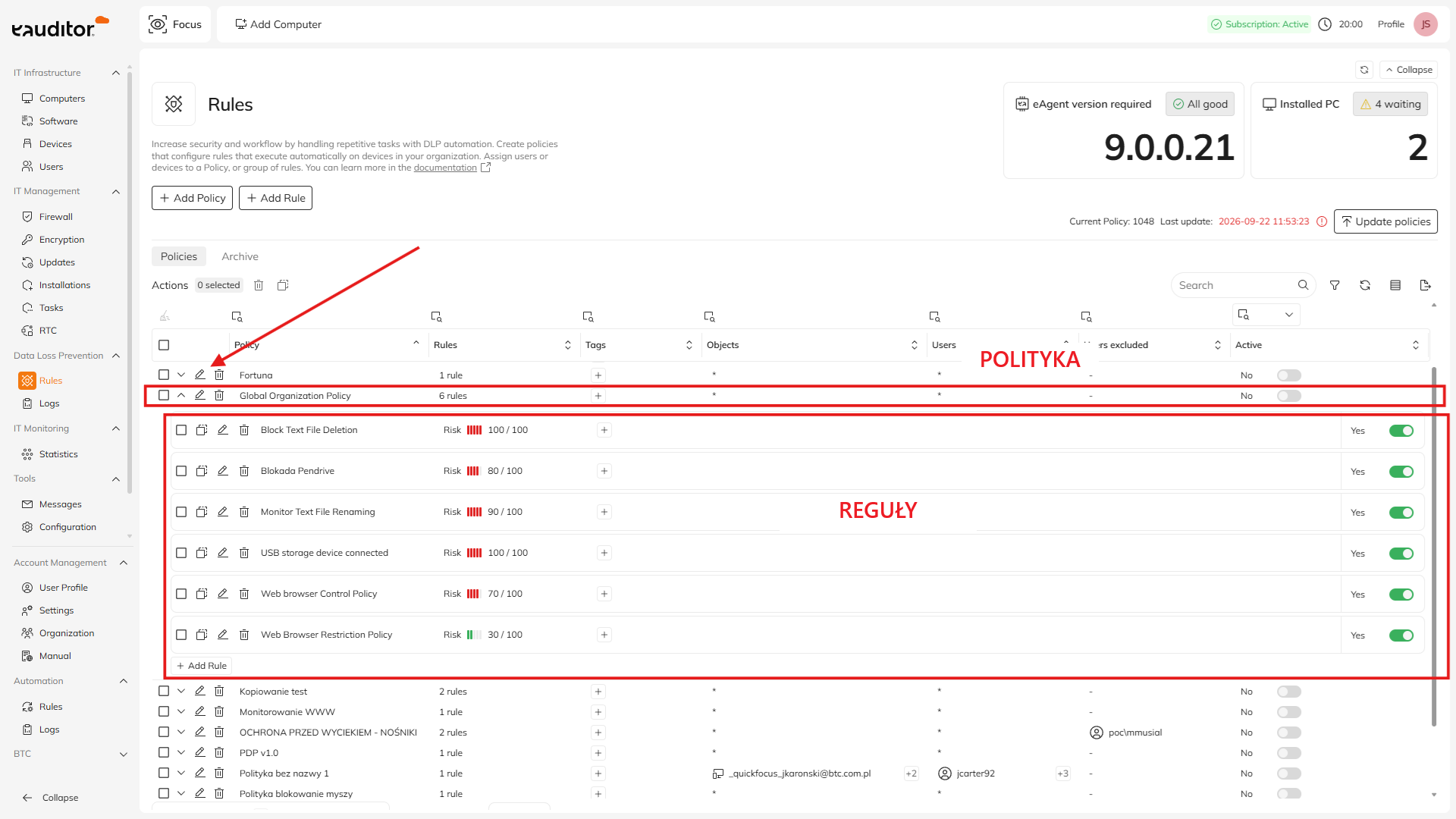
The table contains the created policies together with information about their configuration.

Widok polityk DLP w eAuditor Cloud z listą polityk, ich statusem, przypisaniami i liczbą reguł.
The main view allows you to review the configuration and manage DLP policies.
Information available in the table

Column
Meaning

Policy

DLP policy name

Rules

Number of rules assigned to the policy

Tags

Tags assigned to the policy

Objects

Number of devices covered by the policy

Users

Users assigned to the policy

Excluded users

Users excluded from the policy

Active

Whether the policy is active

Modified by

The user who last modified the policy

Policy description

Description of the policy's purpose

Creation date

Policy creation date

Modification date

Date of last modification

Created by

The user who created the policy

Not all information is needed in daily work. The table can be filtered, making it easier to locate a policy based on a selected parameter.

Viewing policy rules

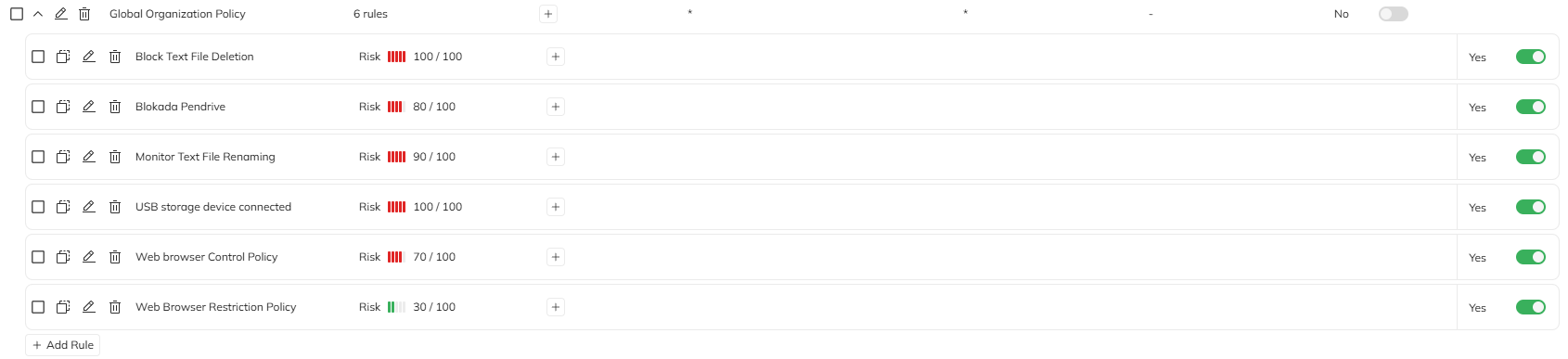
Click the policy name to expand its details.

The expanded row displays the list of rules belonging to the selected policy.

Rozwinięta polityka DLP w eAuditor Cloud z widoczną listą przypisanych reguł.
Expanding a policy allows you to go to rule management.
From here, you can, among other things, edit the rule, copy it, move it to another policy, or delete it.

Detailed rule management is described in the section Rules.

Filtering policies

If the system contains a large number of policies, use the filters available in the table.

You can filter data based on selected columns to more quickly find the configuration you need.

For example, you can search for a policy based on:

  • name,

  • number of rules,

  • tag,

  • assigned objects,

  • user,

  • active status.

Using clear names and tags makes it easier to manage a larger number of policies later.

Adding a policy

To create a new policy, click:

+ Add policy

Then define its name, scope, and assignments.

The complete process for creating the first policy is described in the section First DLP policy.

Editing a policy

You can change the configuration of an existing policy without recreating it.

1

Open policy editing

Find the policy in the table and click the icon edit.

Polityki i edycja reguły.
Policies and rule editing.

A panel with the current policy configuration will open.

2

Make changes

Depending on your needs, you can change, among other things:

  • policy name,

  • description,

  • assigned devices,

  • assigned users,

  • excluded users,

  • policy status.

Edycja polityki
Policy editing.
3

Save configuration

After making changes, save the policy.

The modified configuration will be saved in the console, but that does not yet mean that eAgents are using its new version.

4

Update policies

After finishing your changes, use the button:

Update policies

Only an update makes it possible to deliver the new configuration to eAgents.

Zaktualizuj polityki
Update policies.
Panel edycji polityki DLP umożliwiający zmianę nazwy, przypisanych urządzeń, użytkowników i statusu.
Editing allows you to change the scope of an existing policy without creating it from scratch.

Activating and deactivating a policy

The policy status determines whether its configuration is applied.

  • Active - rules belonging to the policy can apply to the assigned devices and users.

  • Inactive - the policy remains saved in the system, but its rules are not applied.

Deactivating a policy does not remove its configuration.

You can therefore temporarily deactivate a policy and then reactivate it without having to recreate its settings.

After changing the policy status, remember to use the option Update policies, so the change is delivered to eAgents.

Updating policies on computers

A change made in the console does not immediately affect the configuration running on computers.

After changing the policy or its rules, use the button:

Update policies

The button allows you to manually deliver the latest configuration to eAgents.

If no changes have been made since the last update, the button remains disabled. This prevents resending the same configuration.

The button also includes information about the date of the last policy update.

Przycisk Zaktualizuj polityki wraz z informacją o ostatniej aktualizacji konfiguracji DLP.
After changing the configuration, use Update policies to deliver it to eAgents.

Deleting a policy

A policy that is no longer needed can be removed from the system.

1

Select a policy

Find the policy you want to delete.

2

Select the delete option

Start the action Delete for the selected policy.

Opcja usunięcia polityki.
Policy deletion option.
3

Confirm the operation

The system will ask you to confirm the deletion.

After confirmation, the policy and the rules assigned to it will be deleted.

4

Update policies

After removing the configuration, use the option Update policies, so the change is delivered to eAgents.

Best practice

With a larger number of policies, it is worth adopting a consistent naming convention.

The name should make it possible to quickly identify both the purpose and the scope of the configuration.

Examples:

  • DLP - Accounting

  • USB - mobile computers

  • WWW - standard users

  • Confidential files - Management

The policy description is worth using to record information that cannot be conveyed unambiguously by the name alone, such as the policy's purpose or organizational scope.

FAQ

Why is the changed policy not yet taking effect on the computer?

After saving changes, use the option Update policies.

Saving the configuration in the console alone does not immediately deliver it to eAgents.

What happens if the computer is offline during a policy update?

The computer will use the last received configuration.

The new version can be downloaded after eAgent re-establishes communication with the server.

How can you tell when the policies were last updated?

Information about the last update is available with the option Update policies.

Does deactivating a policy remove its configuration?

No. An inactive policy remains saved in the system and can be reactivated.

After changing its status, the policies must be updated.

Does deleting a policy also delete its rules?

Yes. After confirming the policy deletion, the rules assigned to it will also be deleted.

How do you check the rules belonging to a policy?

Click the policy name in the table. The row will expand and display the rules assigned to it.

Last updated

Was this helpful?