> For the complete documentation index, see [llms.txt](https://eaclouddoc.eauditor.eu/llms.txt). Markdown versions of documentation pages are available by appending `.md` to page URLs; this page is available as [Markdown](https://eaclouddoc.eauditor.eu/eacloud-docs-en/features/data-loss-prevention-1/start/triggers.md).
# Triggers
## Creating a rule
Creating a data protection rule is a key step in configuring a data protection policy. The rule defines specific events (**triggers**) that will initiate certain **actions** and **notifications**. With flexible rule configuration, an administrator can precisely tailor protections for their organization against leaks to individual needs.
After creating a new policy (see: [**Creating a new policy** ](/eacloud-docs-en/features/data-loss-prevention-1/start/policies.md)[**data protection**](/eacloud-docs-en/features/data-loss-prevention-1/start/policies.md)), the user proceeds to configure the rule assigned to that policy. The rule creation process includes the following steps:
1. **Adding triggers** – events that initiate the rule.
2. **Configuring actions and notifications** – specifying what will happen after triggers are met.
3. **Risk level** - specifies the impact on the infrastructure when the rule is triggered.
4. **Assigning the rule** – to devices or users.
{% hint style="info" %}
The color of the bar indicates the current load or risk level:
**Green (0–33%)** – value within normal range, normal state.
**Yellow (34–66%)** – warning level, observation or preventive actions recommended.
**Red (67–100%)** – critical state, requires immediate response.
{% endhint %}
***
## New data protection rule step by step - Triggers
{% stepper %}
{% step %}
### Adding triggers
In the newly opened tab there is an area with the text **"When this happens..."**. This is where you configure the triggers that initiate the rule's actions.
Clicking the **Add step** opens **the triggers window** (side menu on the right side of the screen).
{% endstep %}
{% step %}
### Trigger categories
Triggers are divided into two main categories:
* **Schedule** - triggers that operate cyclically, without user involvement. Actions are executed automatically at specified intervals.
* **DLP (data loss prevention)** - triggers activated as a result of user actions, e.g., attempts to copy data or other activity covered by the DLP policy.
{% hint style="info" %}
#### Additional information
The **Schedule** section enables running actions at regular intervals without the need for a specific event to occur. The action is executed cyclically, regardless of the current system state.
If the computer is turned off, the scheduled action is queued and will be executed after the device is restarted.
In the **Schedule** section for the DLP view the following options are available:
* hourly,
* daily,
* weekly,
* monthly.
***\[We are working on this functionality. We will announce its deployment in the changelog as soon as it becomes available.]***
{% endhint %}
{% endstep %}
{% step %}
### Trigger parameterization
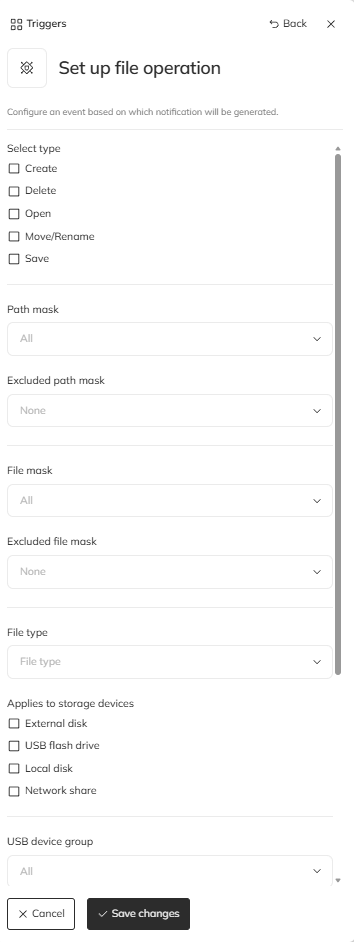
Each trigger can be further parameterized depending on context. Parameterization is necessary when only specific cases are of interest, e.g., operations on files with a particular extension and in a given location.
For example, if we want to monitor only Word files saved on the desktop:
* file mask - `*.docx`,
* path - `C:\Desktop`.
Thanks to parameterization, the trigger reacts only to events that meet the defined conditions, instead of encompassing all operations of that type.
{% endstep %}
{% endstepper %}
{% hint style="info" %}
### **The trigger is optional**
For policy configuration setting a trigger **is not always required**. In some cases this step can be skipped by toggling the switch in the upper right corner of the tile and proceeding directly to the next stage, i.e., configuring actions.

This is useful, for example, when you want to trigger a startup message displayed every time a user logs into the computer, without the need to define a trigger or schedule.
To proceed to action configuration, click [here](/eacloud-docs-en/features/data-loss-prevention-1/start/actions.md).
{% endhint %}
### **Available trigger options**
{% tabs %}
{% tab title="Scheduled" %}
This allows scheduling the automation to run at a specific time, regardless of other conditions.
* **hourly** - the automation runs once every hour.
* **daily** - the automation runs once a day at the specified time.
* **weekly** - the automation runs once a week, on the selected day and time.
* **monthly** - the automation runs once a month, on the specified day and time.
{% endtab %}
{% tab title="DLP" %}
Types of operations that can be monitored, blocked, or parameterized within data protection policies. Each operation can be configured as a trigger that initiates further actions such as blocking, logging, or sending notifications.
### Copying
* **Copying file paths**\
Control of copying file locations (access paths).
* **Copying images**\
Tracking copying of graphics and images.
* **Copying text**\
Monitoring copying of text fragments to the clipboard.
### Connecting devices
* **Device connection**\
Monitoring connection of other peripheral devices (e.g., printers, scanners, drives).
### Sending a file
* **E-mail**\
Monitoring sending files via email.
* **Cloud applications**\
Control of uploading files to cloud storage services.
* **Other**\
Detecting file transfers by other methods (e.g., FTP applications).
### File operations
* **Create**\
Detecting creation of new files.
* **Delete**\
Monitoring attempts to delete files.
* **Open**\
Monitoring and logging file opening events.
* **Move/Rename**\
Monitoring changes to file names or locations.
* **Save**\
Tracking changes saved within files.
### Process/application start
* Monitoring the launching of programs or processes.
### Connecting USB storage
* Detecting connection of external storage media, e.g., USB flash drives.
### Visited a web page
* **Web page browsing**\
Tracking user activity in web browsers.
### Connected to network
* Tracking moments when the device connects to the network.
### Exceeded working hours
* **Exceeded working hours**\
Monitoring user activity outside designated working hours.
### Taking a screenshot
* Logging every attempt to take a screenshot.
### Other operations
* **Printing**\
Logging attempts to print documents.
* **Network transfer**\
Monitoring large data transfers on the network.
{% hint style="info" %}
**\[Other operations]** *\[We are working on this functionality. We will announce its deployment in the changelog as soon as it becomes available.]*
{% endhint %}
{% endtab %}
{% endtabs %}
***
After creating triggers you can proceed to configure **actions and notifications**, which constitutes the next step in the automation creation process.
---
# Agent Instructions
This documentation is published with GitBook. GitBook is the documentation platform designed so that both humans and AI agents can read, navigate, and reason over technical content effectively. Learn more at gitbook.com.
## Querying This Documentation
If you need additional information that is not directly available in this page, you can query the documentation by asking a question.
Perform an HTTP GET request on the following URL with the `ask` and `goal` query parameters:
```
GET https://eaclouddoc.eauditor.eu/eacloud-docs-en/features/data-loss-prevention-1/start/triggers.md?ask=&goal=
```
`ask` is the immediate question: it should be specific, self-contained, and written in natural language.
`goal` is what the user is ultimately trying to achieve, the reason they need the answer. Sharing it helps GitBook give you a better, more relevant answer. A goal is most helpful when it describes the outcome the user wants rather than restating the question. For example, with `ask=how do I create an API token`, a goal like `automate deployments from our CI pipeline` lets GitBook tailor the answer to that use case.
The response will contain a direct answer to the question and relevant excerpts and sources from the documentation.
Use this mechanism when the answer is not explicitly present in the current page, you need clarification or additional context, or you want to retrieve related documentation sections.