> For the complete documentation index, see [llms.txt](https://eaclouddoc.eauditor.eu/llms.txt). Markdown versions of documentation pages are available by appending `.md` to page URLs; this page is available as [Markdown](https://eaclouddoc.eauditor.eu/eacloud-docs-en/features/data-loss-prevention-1/dlp-policies-and-rules/triggers/usb-device-connected.md).
# USB device connected
## Trigger USB drive connection in DLP policies
Trigger **USB drive connection** enables management and monitoring of activities related to connecting USB devices to computers within the organization. Through detailed rule configuration, you can control USB device availability and define conditions for their use.
### Configuration steps
{% stepper %}
{% step %}
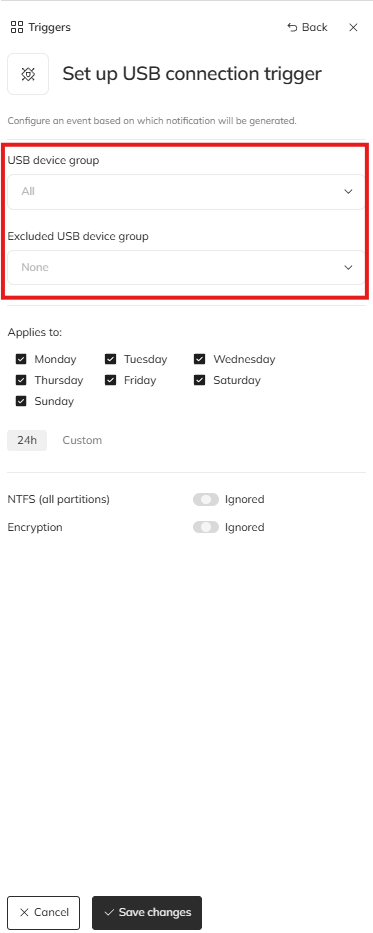
### USB device groups
**Device group**
* Selection of USB device groups to be monitored.
* Groups are created based on previously detected USB devices in the system.
**Requirements:**
* Device identification by **ID** – a unique number assigned by the manufacturer that cannot be changed by the user (unlike the device name, which can be modified during formatting).
**Behavior:**
* If a device is in a blocked group, its connection will be blocked even if the device name has been changed.
* For devices not available on the list, it is possible to manually add the device to a group.
[**Adding a USB device group**](#tworzenie-nowej-grupy-urzadzen-usb-krok-po-kroku)
{% endstep %}
{% step %}
### **Excluded devices group (optional)**
* Specify device groups that are excluded from monitoring.
* Devices in this group will always be allowed, regardless of other rules.
{% endstep %}
{% step %}
### Event parameterization
**Applies on selected days:**\
Selection of days on which the rule should be active (checkboxes for each day of the week).\
Option: If the rule should operate all week, select all days.
**Applies during selected hours:**\
Definition of the time interval during which the rule should be active.\
Two modes are available:
* **24h**\
Corresponds to the “asterisk” behavior – the rule operates around the clock on selected days.
* **Custom**\
Allows specifying a custom time interval, e.g., 08:00 - 17:00. The possible range is from 00:00 to 23:59.
{% endstep %}
{% step %}
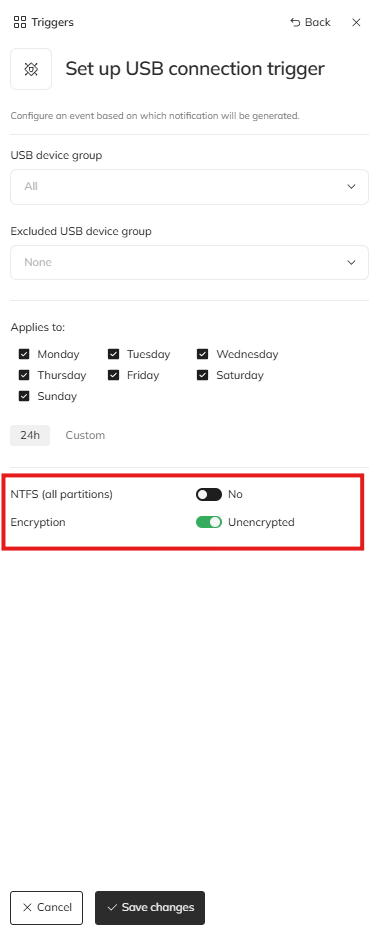
### Additional parameters
**NTFS (all partitions)**
* Checkbox **YES/IGNORE/NO**, which specifies whether devices with the NTFS file system should be monitored/blocked.
**Encryption**
* A checkbox allowing specification of the USB device encryption status (**ENCRYPTED/IGNORE/UNENCRYPTED**). The rule allows blocking or allowing devices depending on whether they are encrypted.
{% endstep %}
{% endstepper %}
### Creating a new USB device group – step by step
{% stepper %}
{% step %}
### Open the trigger configuration
In the **lower part of the dropdown list** in the trigger configuration window, select the option to create a new group.
{% endstep %}
{% step %}
### Enter the group name and description
* In the **Name** field, enter a unique name for the new group.
* Optionally add a description to facilitate future identification of the group.
{% endstep %}
{% step %}
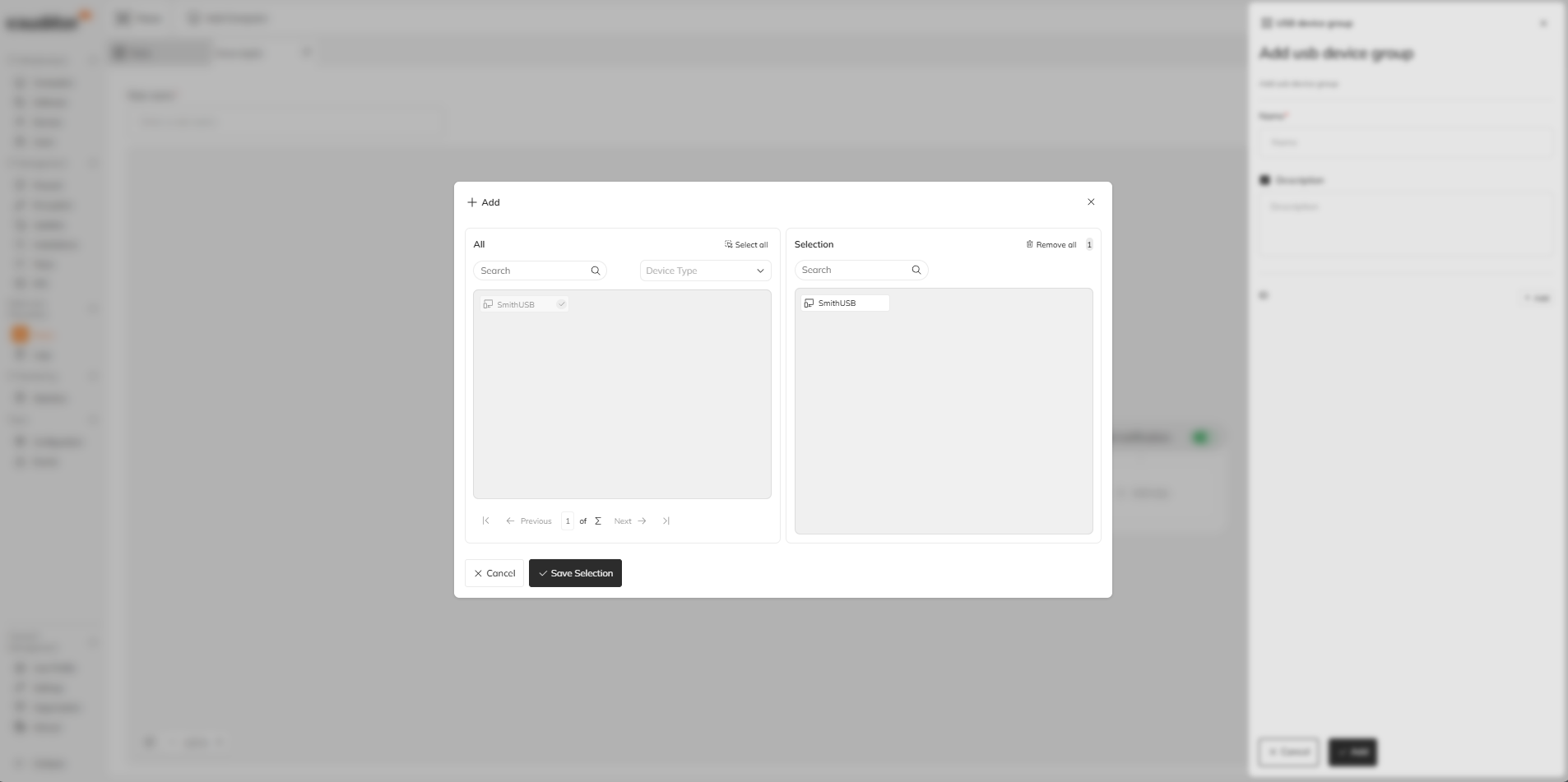
### Add devices to the group
* **Select devices from the list:** Select devices available on the detected USB devices list. Selected devices will be moved to the window on the right and grayed out in the window on the left
{% endstep %}
{% step %}
### Save selection
Click **Save selection**, to save the configuration. The group will be added to the system and will be available in the trigger configuration.
{% endstep %}
{% endstepper %}
## Practical application
**Example:** The organization wants to allow only authorized USB devices.
* **Configuration:**
* Create a group containing authorized USB devices based on **ID**.
* Block all other devices outside this group.
* Activate the rule for all days of the week and in a 24-hour mode.
* **Effect:** Only the defined USB devices will be accepted, and any unauthorized connection will be blocked.
{% hint style="warning" %}
#### Monitoring USB flash drives
By default the system does not monitor USB flash drive-type devices.
If you want to **enable monitoring - even without blocking** - you should activate the appropriate policy for all devices, leaving the default settings:
* device group - All
* no exclusions
* full time range

This will cause the system to start recording events related to connecting USB media.
If you are only interested in monitoring without taking blocking actions, in the next step:
* deactivate the “Perform these actions” option
* in the “Send notification” section enable only event logging
* optionally enable user notification

It is advisable to clearly inform the user in the message content that connecting USB devices is being monitored. Building awareness among employees is a good practice.
{% endhint %}
## Summary
Trigger **USB drive connection** is a key tool in enforcing security policies regarding data media. It enables precise control over USB device availability, minimizing the risk of unauthorized data access within the organization. With flexible configuration options, adapting rules to organizational needs is fast and effective.
---
# Agent Instructions
This documentation is published with GitBook. GitBook is the documentation platform designed so that both humans and AI agents can read, navigate, and reason over technical content effectively. Learn more at gitbook.com.
## Querying This Documentation
If you need additional information that is not directly available in this page, you can query the documentation dynamically by asking a question.
Perform an HTTP GET request on the current page URL with the `ask` query parameter, and the optional `goal` query parameter:
```
GET https://eaclouddoc.eauditor.eu/eacloud-docs-en/features/data-loss-prevention-1/dlp-policies-and-rules/triggers/usb-device-connected.md?ask=&goal=
```
`ask` is the immediate question: it should be specific, self-contained, and written in natural language.
`goal` is optional and describes the broader end goal you are ultimately trying to accomplish on behalf of the user. GitBook uses it to tailor the answer towards what is most useful for that goal.
The response will contain a direct answer to the question and relevant excerpts and sources from the documentation.
Use this mechanism when the answer is not explicitly present in the current page, you need clarification or additional context, or you want to retrieve related documentation sections.